3. 3-oauthsupabase설정
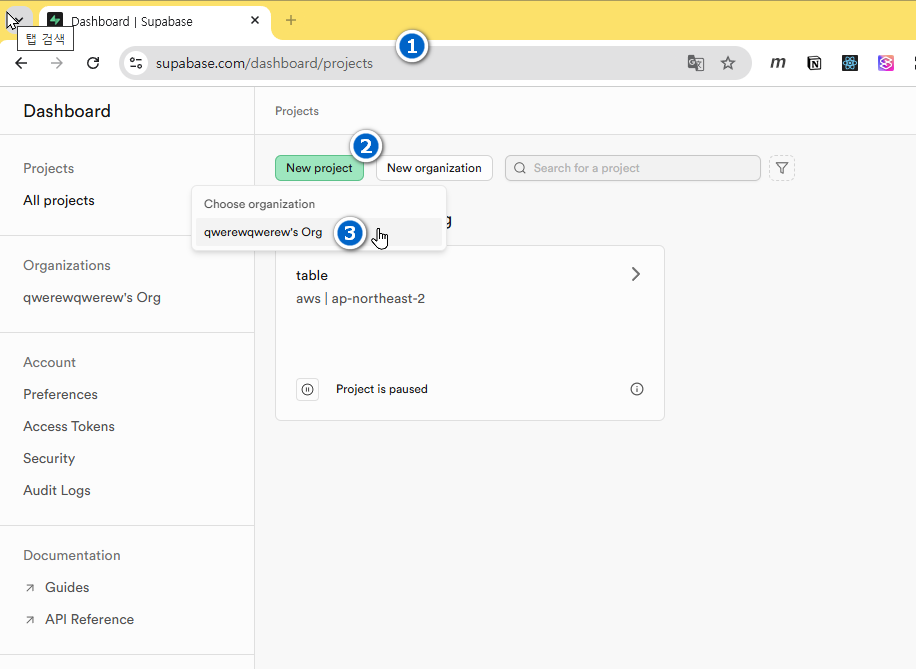
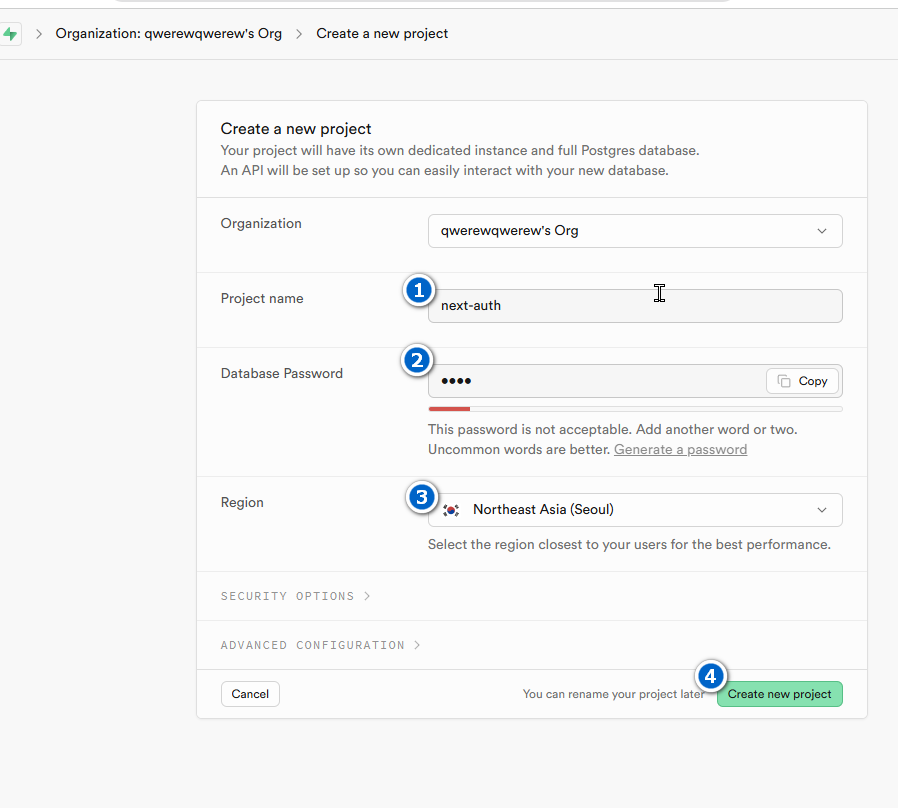
1-Supabase_project_생성
2-nextJs
- .env.local 파일 생성
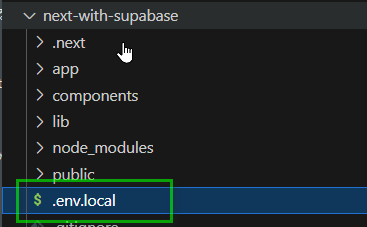
- Next.js에서 서버측 인증설정 - 아래 링크에서 단계별 안내를 따라한다
- 🔗https://supabase.com/docs/guides/auth/server-side/nextjs
- 🔗https://supabase.com/docs/guides/auth/social-login/auth-github
- 수파베이스 패키지 설치
npm install @supabase/supabase-js @supabase/ssr
- 환경변수 설정 - .env.local
NEXT_PUBLIC_SUPABASE_URL=<your_supabase_project_url>
NEXT_PUBLIC_SUPABASE_ANON_KEY=<your_supabase_anon_key>
각 변수의 값은 가이드 문서에서 확인할 수 있다.
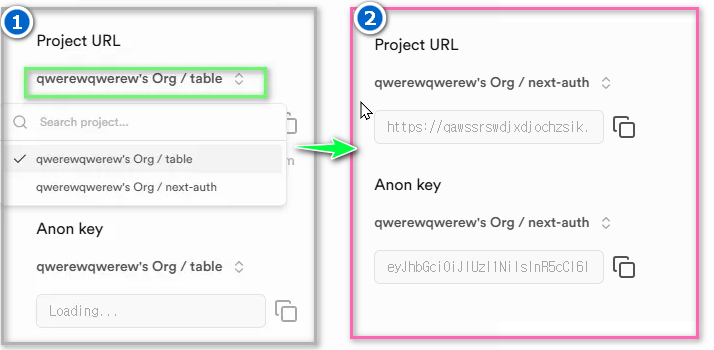
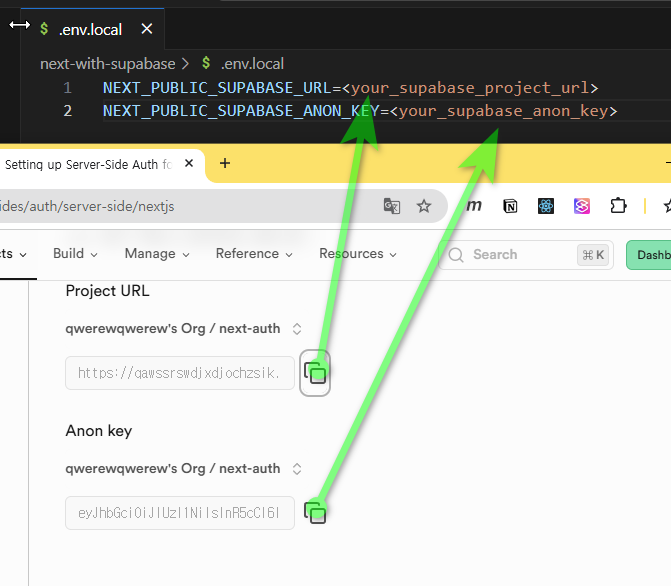
자신의 환경변수에 맞는 값을 확인하여 수정한다
- lib/supabase/server.ts 생성
import { createServerClient } from '@supabase/ssr'
import { cookies } from 'next/headers'

export async function createClient() {
  const cookieStore = await cookies()

  return createServerClient(
    process.env.NEXT_PUBLIC_SUPABASE_URL!,
    process.env.NEXT_PUBLIC_SUPABASE_ANON_KEY!,
    {
      cookies: {
        getAll() {
          return cookieStore.getAll()
        },
        setAll(cookiesToSet) {
          try {
            cookiesToSet.forEach(({ name, value, options }) =>
              cookieStore.set(name, value, options)
            )
          } catch {
            // The `setAll` method was called from a Server Component.
            // This can be ignored if you have middleware refreshing
            // user sessions.
          }
        },
      },
    }
  )
}
- lib/supabase/client.ts 생성
import { createBrowserClient } from '@supabase/ssr'

export function createClient() {
  return createBrowserClient(
    process.env.NEXT_PUBLIC_SUPABASE_URL!,
    process.env.NEXT_PUBLIC_SUPABASE_ANON_KEY!
  )
}
- next-with-supabase\app\auth\callback\route.ts 생성 🔗https://supabase.com/docs/guides/auth/social-login/auth-github?queryGroups=framework&framework=nextjs
import {NextResponse} from 'next/server';
// The client you created from the Server-Side Auth instructions
import {createClient} from '@/lib/supabase/server';

export async function GET(request: Request) {
  const {searchParams, origin} = new URL(request.url);
  const code = searchParams.get('code');
  // if "next" is in param, use it as the redirect URL
  const next = searchParams.get('next') ?? '/';

  if (code) {
    const supabase = await createClient();
    const {error} = await supabase.auth.exchangeCodeForSession(code);
    if (!error) {
      const forwardedHost = request.headers.get('x-forwarded-host'); // original origin before load balancer
      const isLocalEnv = process.env.NODE_ENV === 'development';
      if (isLocalEnv) {
        // we can be sure that there is no load balancer in between, so no need to watch for X-Forwarded-Host
        return NextResponse.redirect(`${origin}${next}`);
      } else if (forwardedHost) {
        return NextResponse.redirect(`https://${forwardedHost}${next}`);
      } else {
        return NextResponse.redirect(`${origin}${next}`);
      }
    }
  }

  // return the user to an error page with instructions
  return NextResponse.redirect(`${origin}/auth/auth-code-error`);
}
- next-with-supabase\app\auth\page.tsx 수정
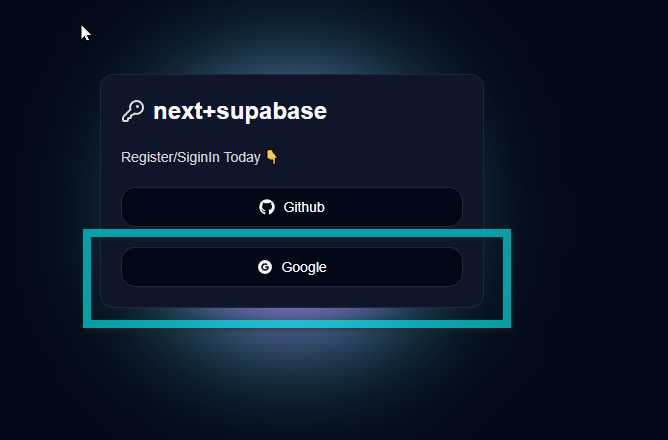
**'use client';**
import React from 'react';
import {KeyRound} from 'lucide-react';
import {Button} from '@/components/ui/button';
import {FaGithub} from 'react-icons/fa';
import {AiFillGoogleCircle} from 'react-icons/ai';
**import {createClient} from '@/lib/supabase/client';**

const Page = () => {
**  const handleLoginWithOAuth = (provider: 'github' | 'google') => {
    const supabase = createClient();
    supabase.auth.signInWithOAuth({
      provider,
      options: {
        redirectTo: `${window.location.origin}/auth/callback`,
      },
    });
  };**
  return (
    <div className="flex items-center justify-center w-full h-screen">
      <div className="w-96 rounded-md border p-5 space-y-5 relative bg-slate-900">
        <div className="flex items-center gap-2">
          <KeyRound color="#dedede" />
          <h1 className="text-2xl font-bold">next+supabase</h1>
        </div>
        <p className="text-sm text-gray-300">Register/SiginIn Today 👇</p>

        <div className="flex flex-col gap-5">
          <Button className="w-full" variant="outline" **onClick={() => handleLoginWithOAuth('github')}**>
            <FaGithub />
            Github
          </Button>
          <Button className="w-full" variant="outline"** onClick={() => handleLoginWithOAuth('google')**}>
            <AiFillGoogleCircle />
            Google
          </Button>
        </div>
        <div className="glowBox -z-10"></div>
      </div>
    </div>
  );
};
export default Page;
3-소셜로그인
3-1-깃허브
3-1-1-수파베이스
- 대쉬보드의 Authentication 로 이동후 이미지와 같이 선택한다
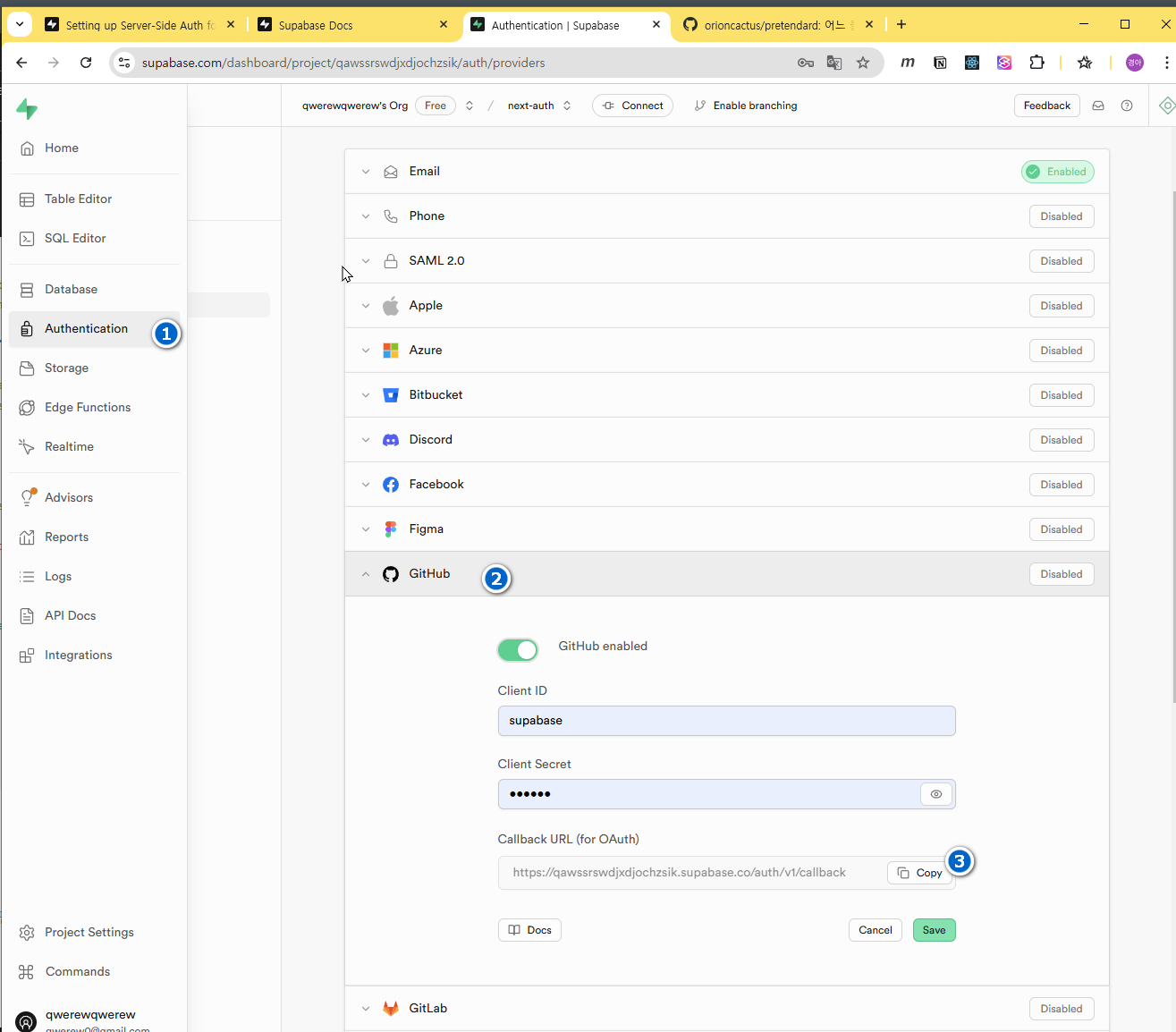
3-1-2-Github
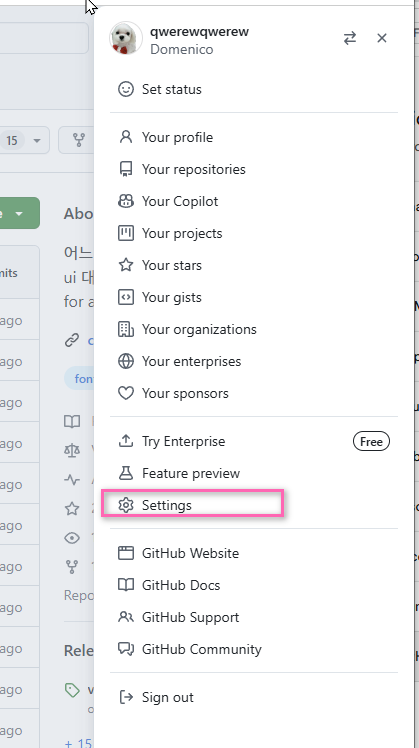
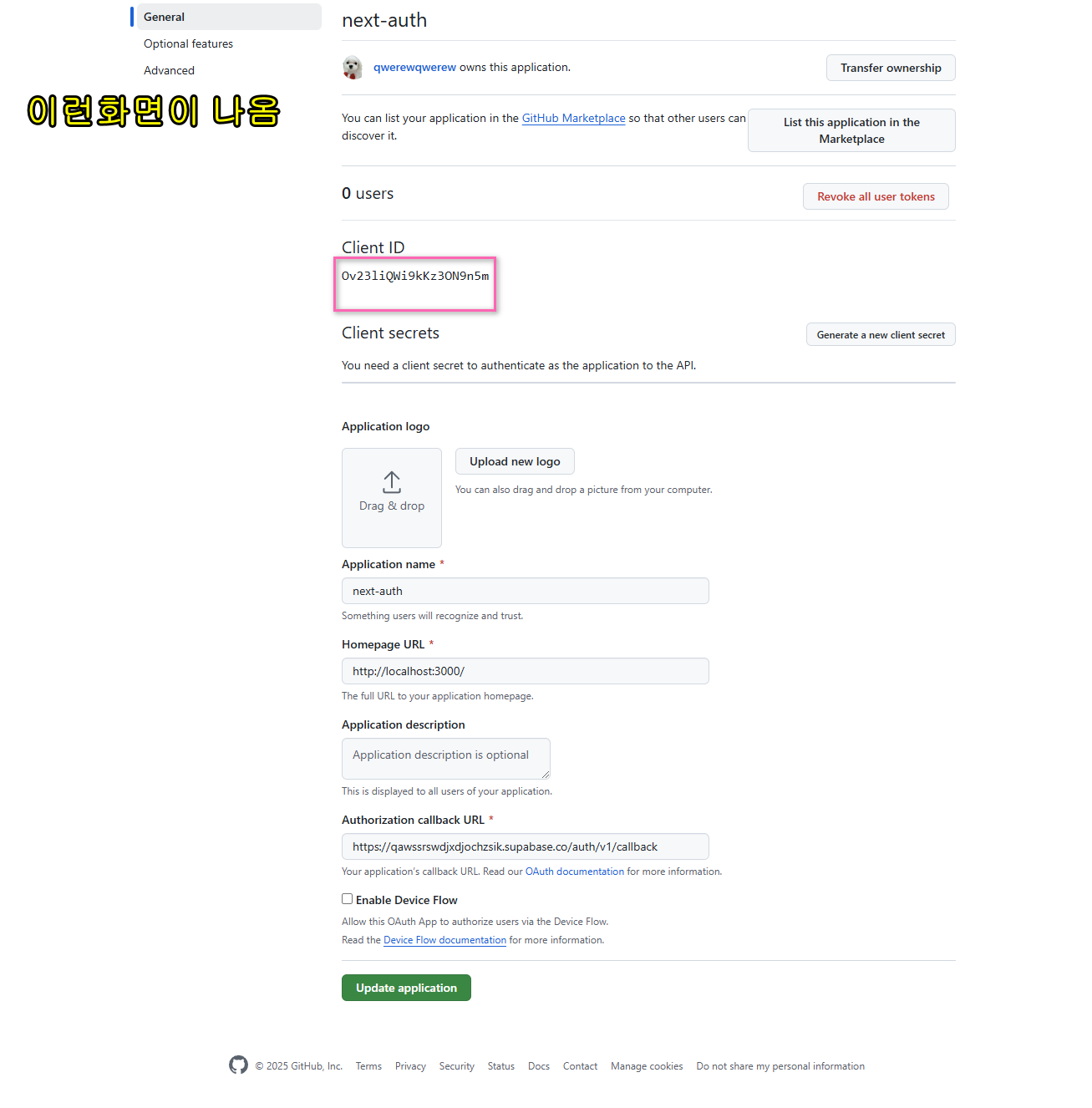
- 본인의 계정으로 로그인 후 프로필설정을 클릭한다
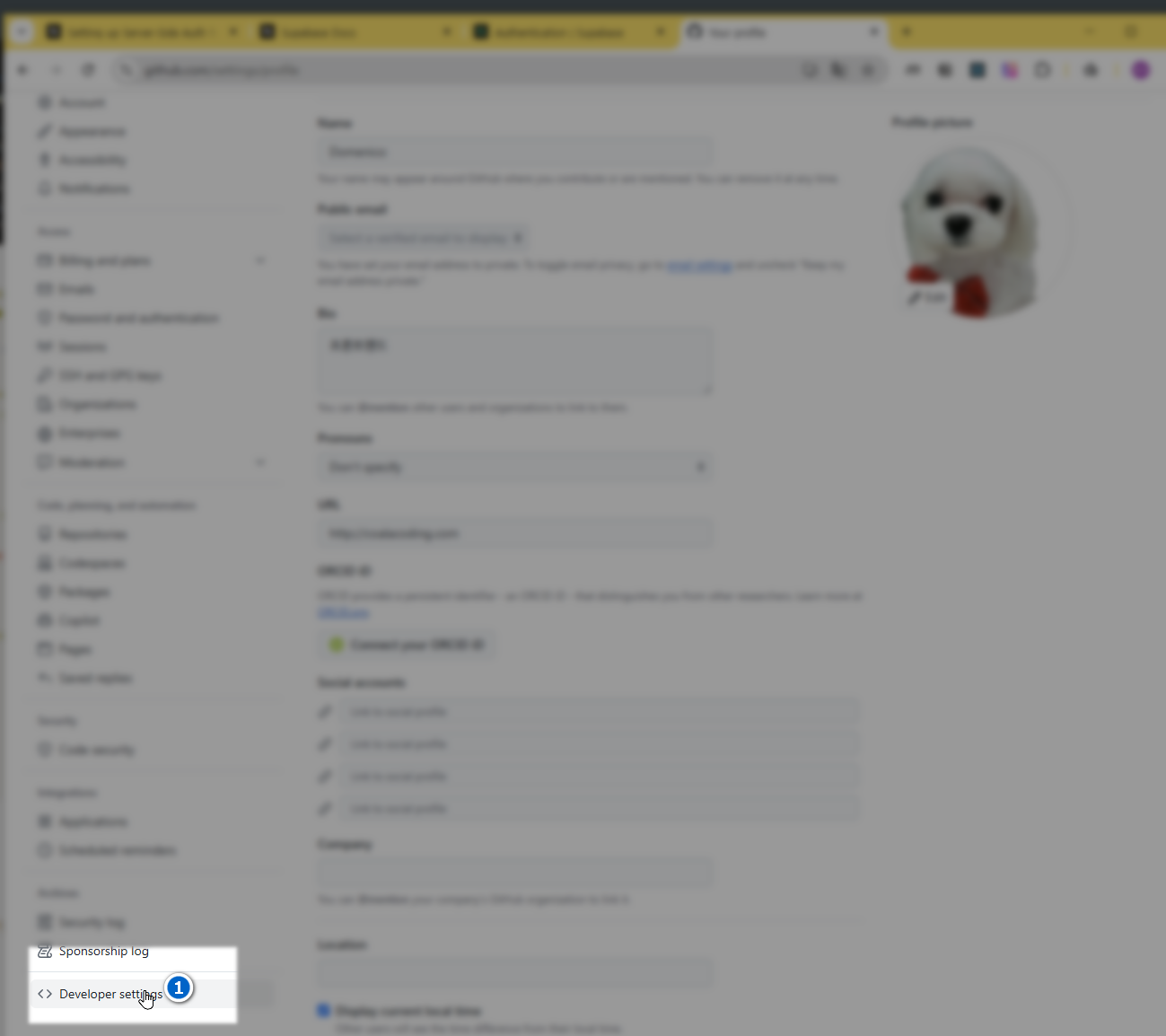
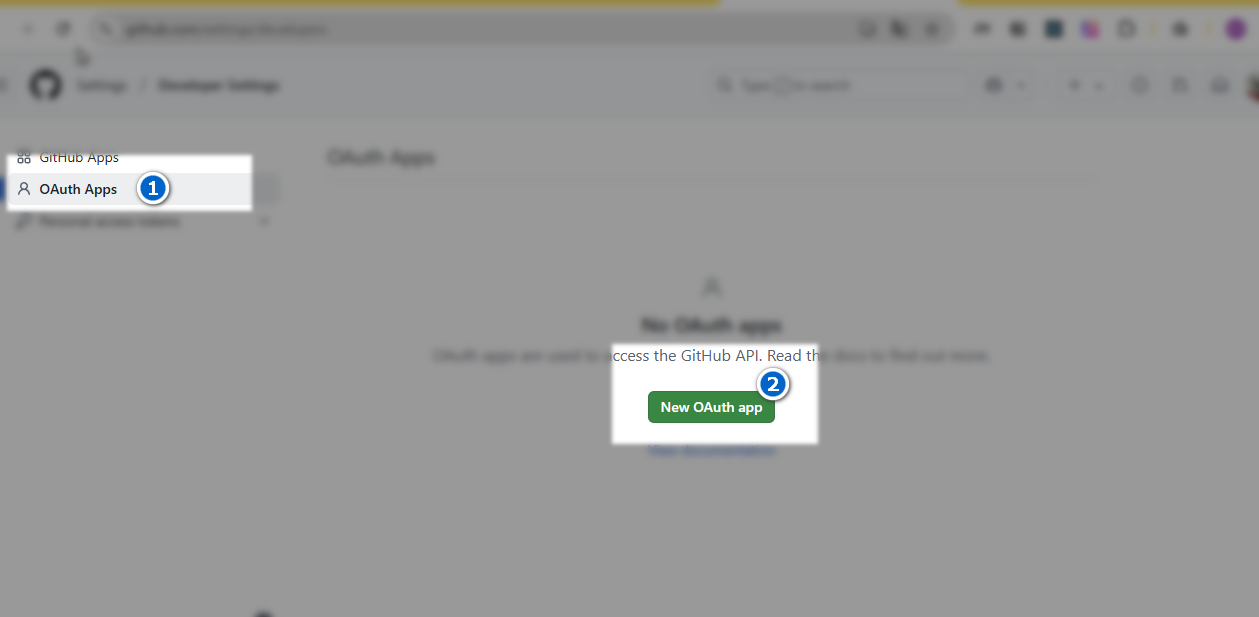
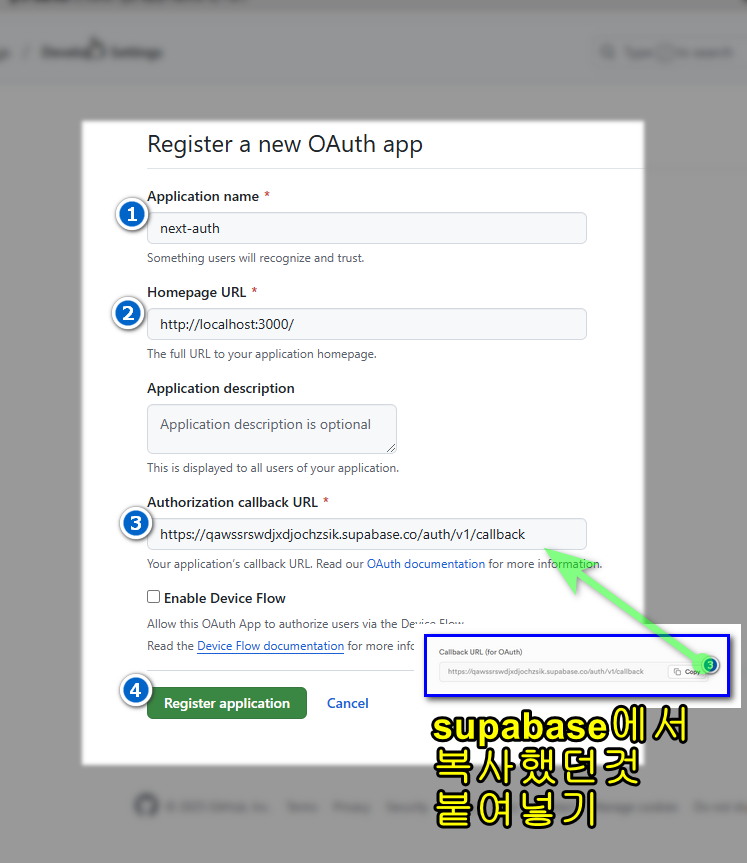
- 등록 완료 후 아이디와 비번을 supabase에 붙여넣기 그림참조
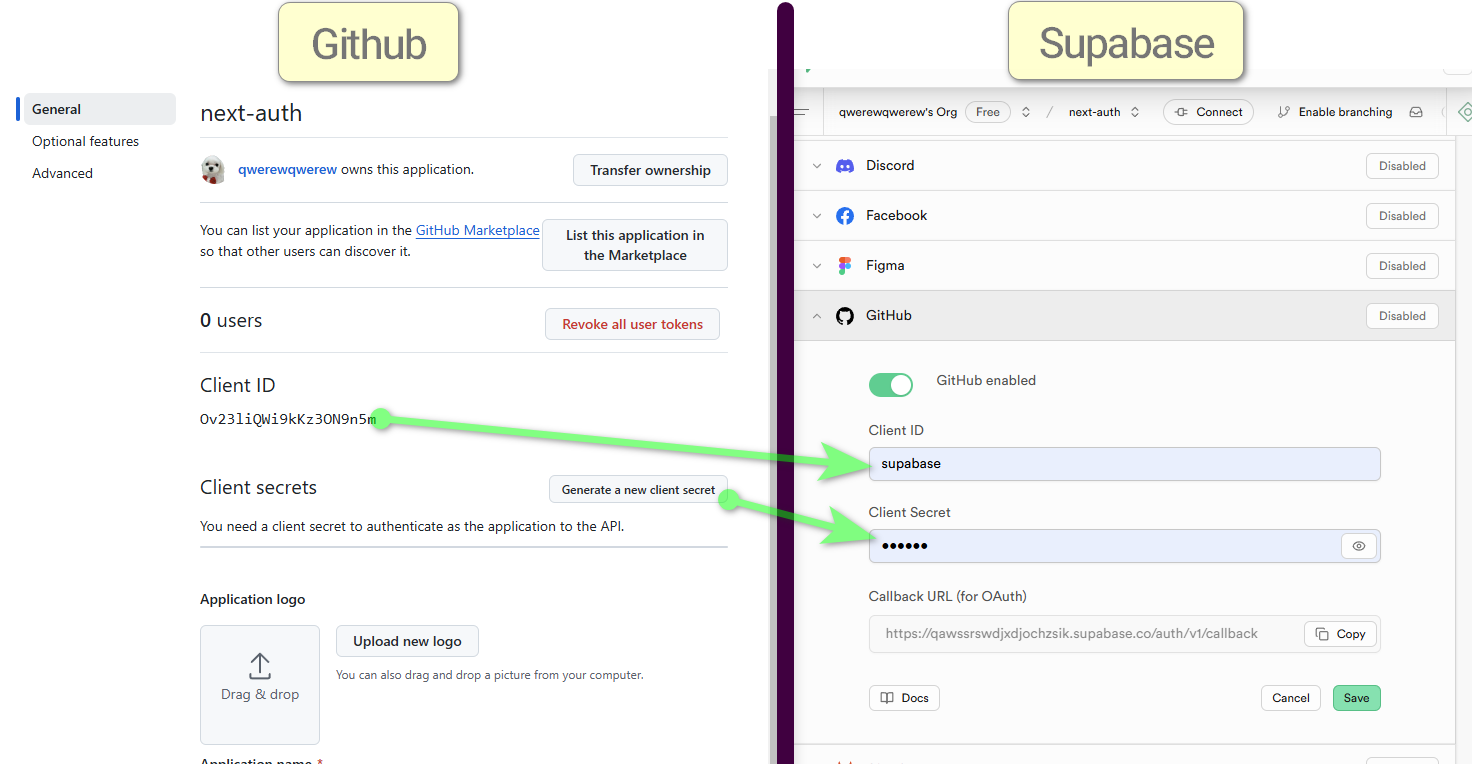
- supabase에 저장
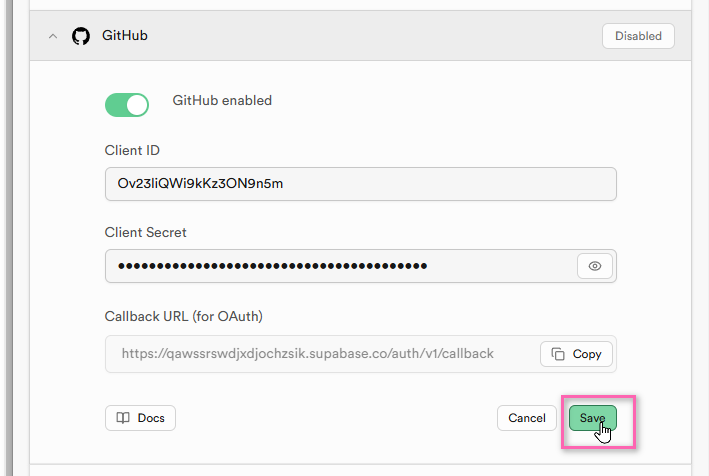
3-1-3-테스트
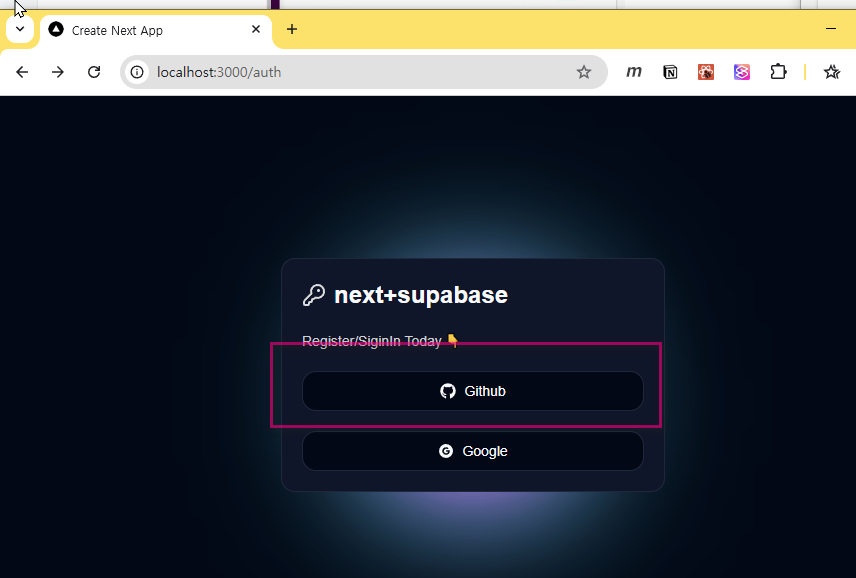
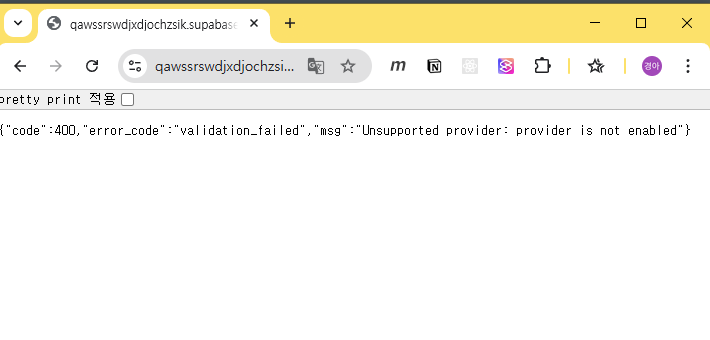
- 사용자 등록전
- 사용자 등록 후
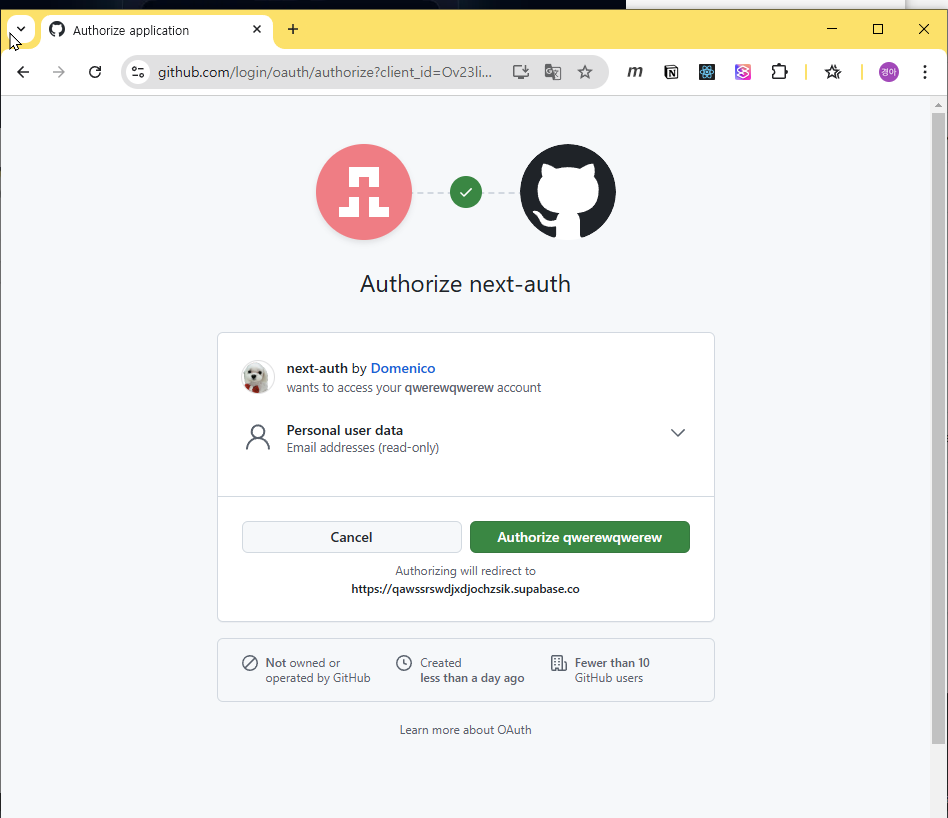
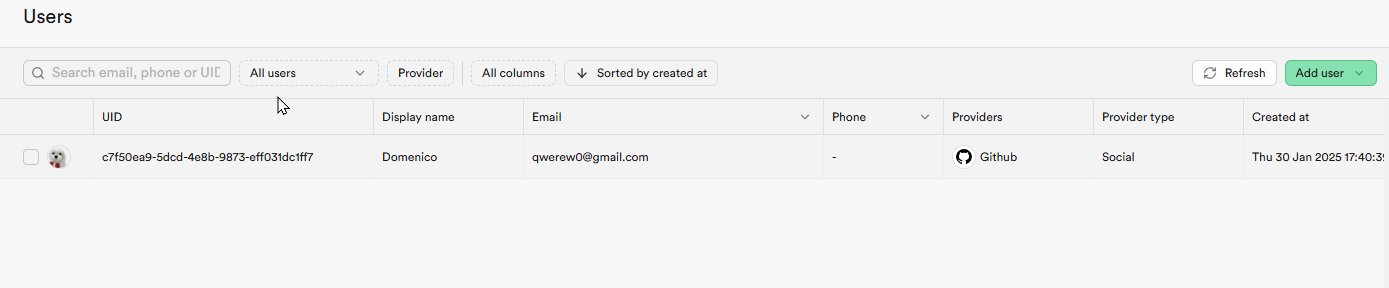
- Authorize 를 클릭하면 홈으로 이동하고 사용자 정보는 데이터베이스에 저장된다
3-2-구글
3-2-1-프로젝트 등록
- 수파베이스 가이드의 링크로 이동 https://console.cloud.google.com/apis/credentials?inv=1&invt=AboOFw&project=mango-375607
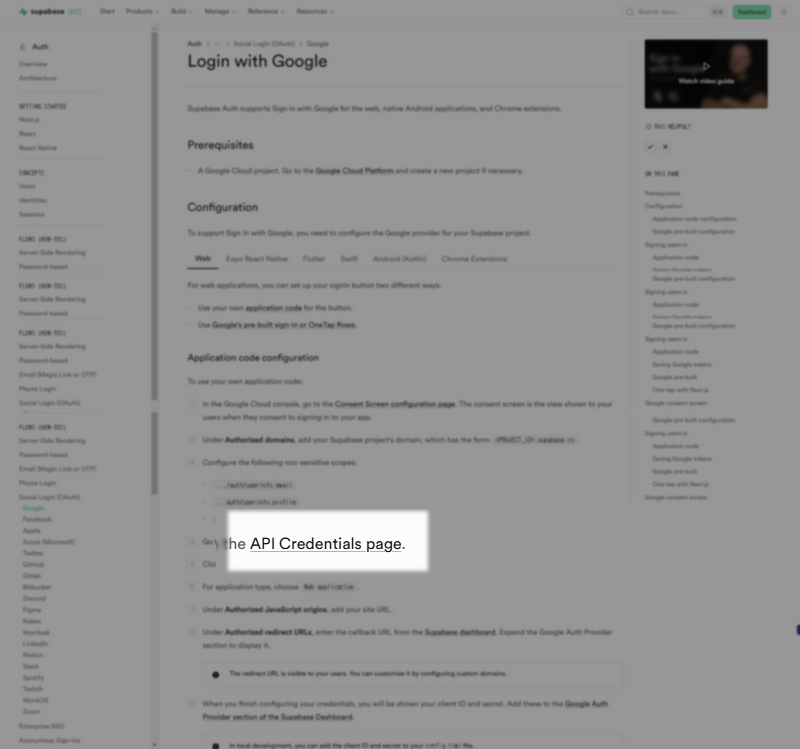
- 이미지의 표시된 부분을 클릭한다
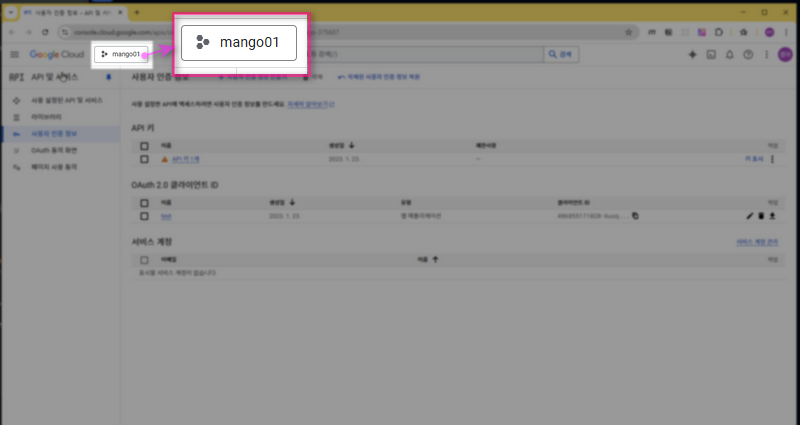
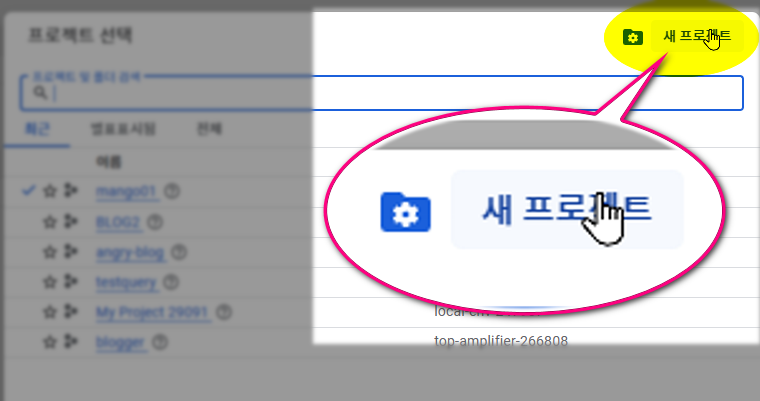
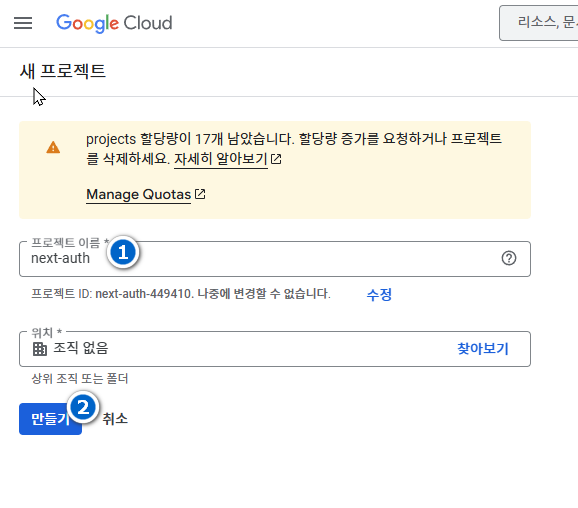
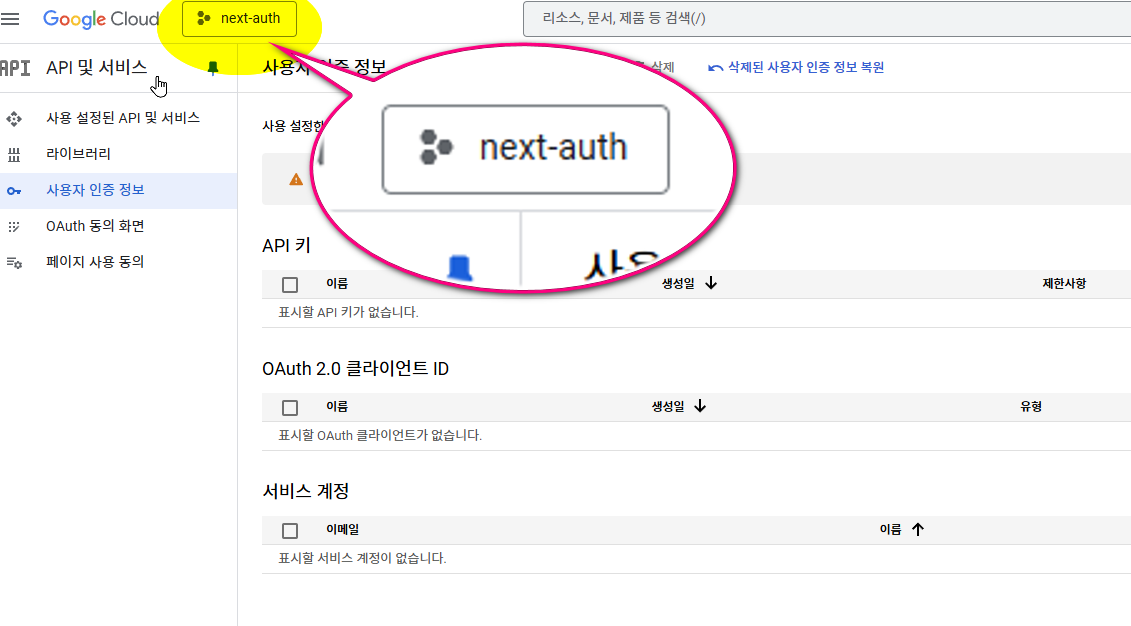
- 대시보드에서 화면 상단의 프로젝트 버튼을 클릭하여 생성한 프로젝트를 선택한다.
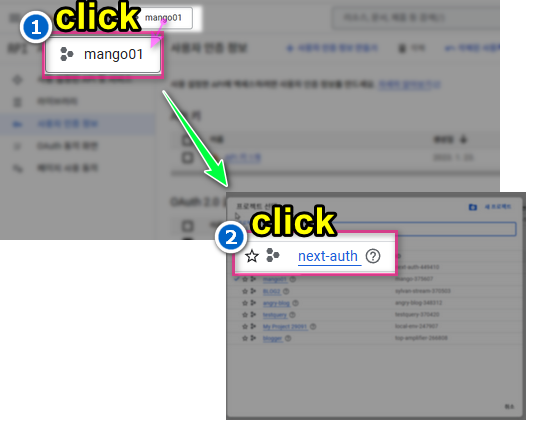
3-2-2-자격증명등록
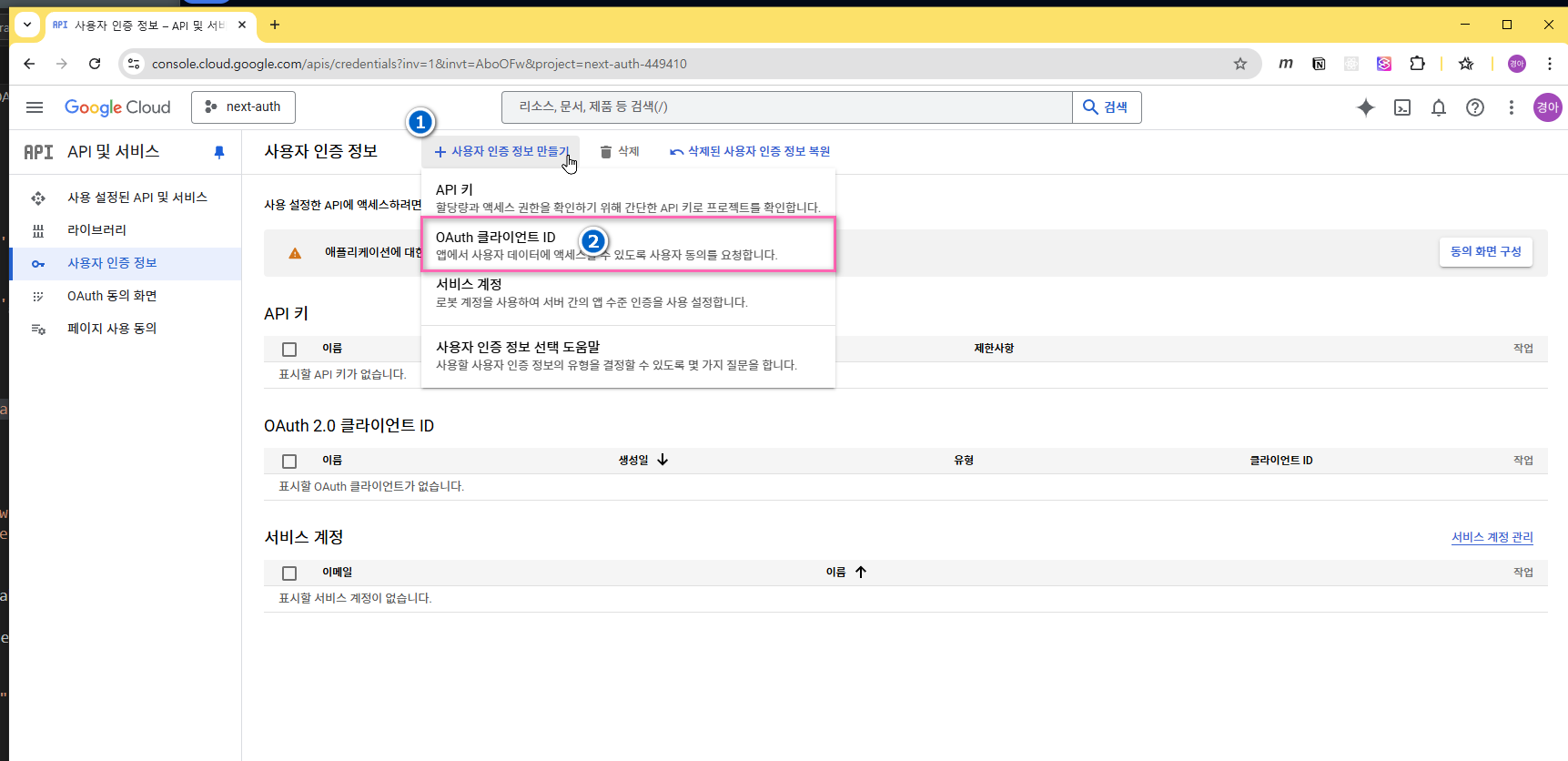
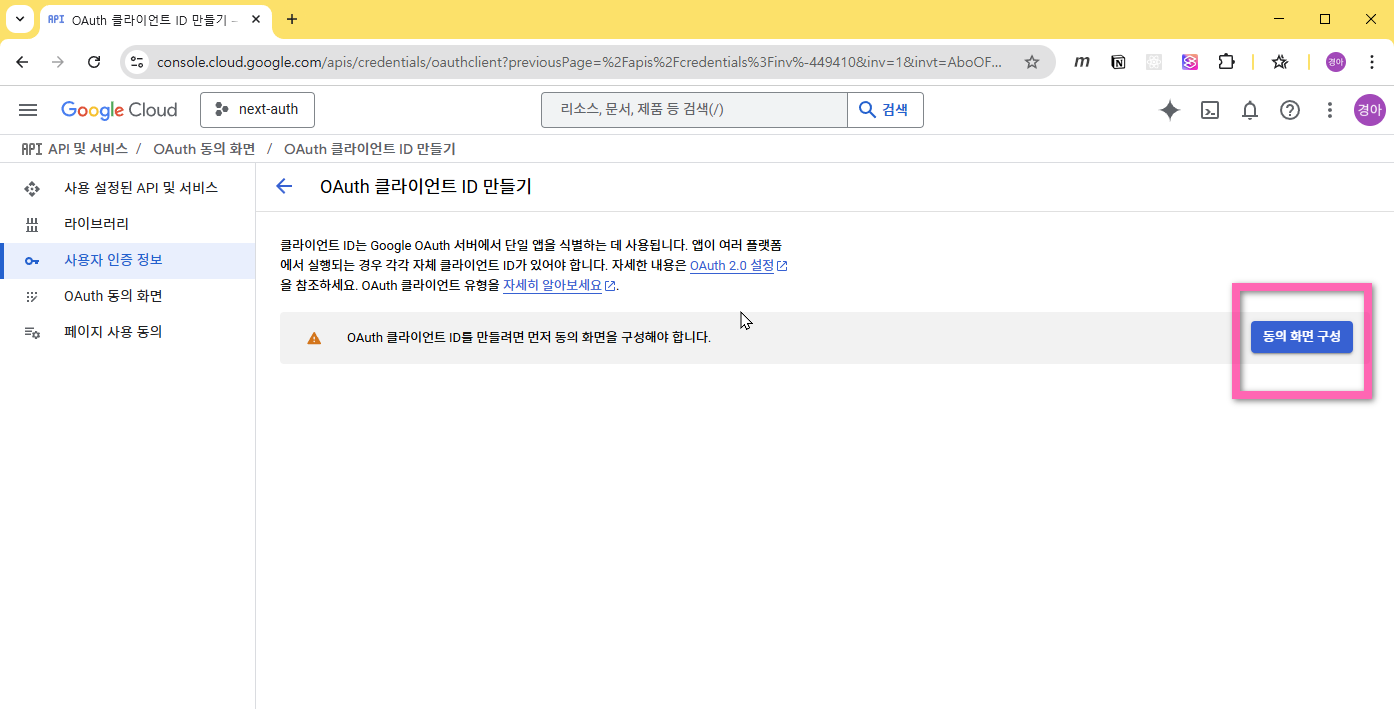
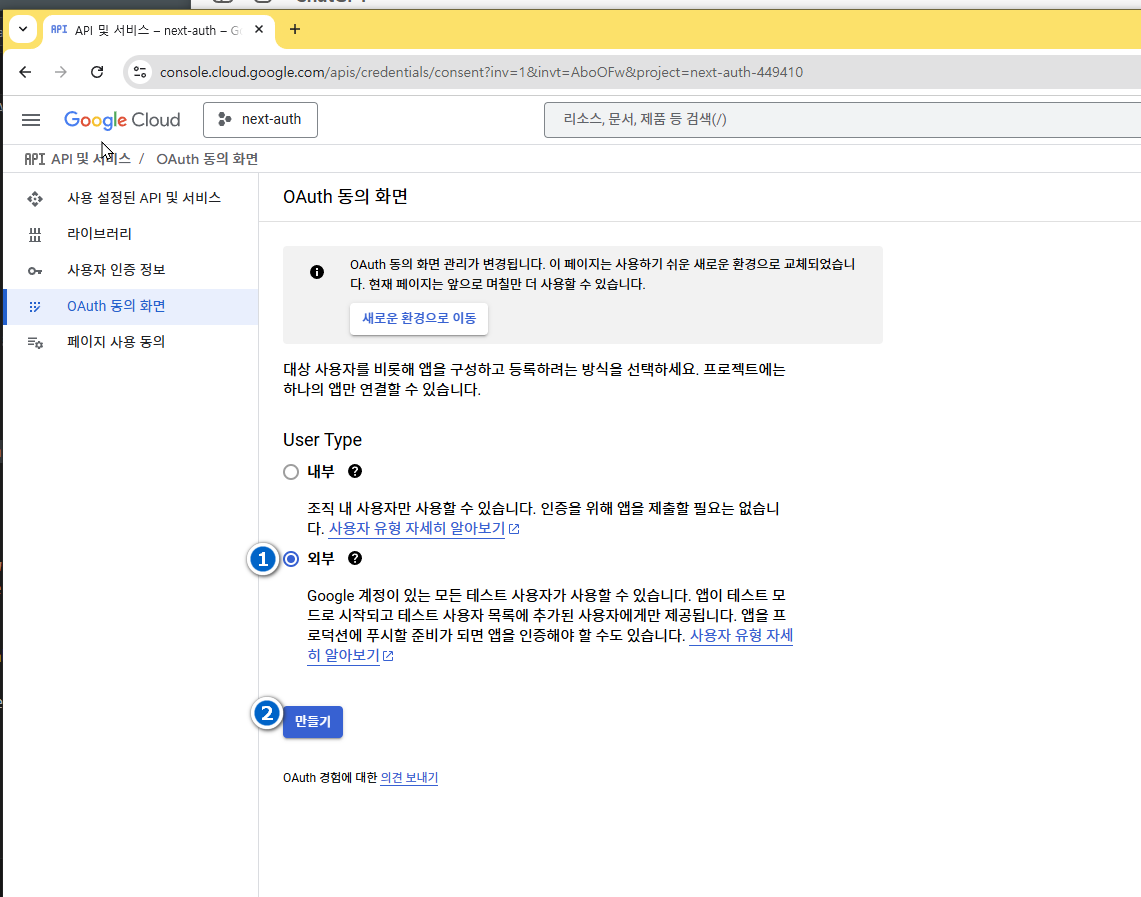
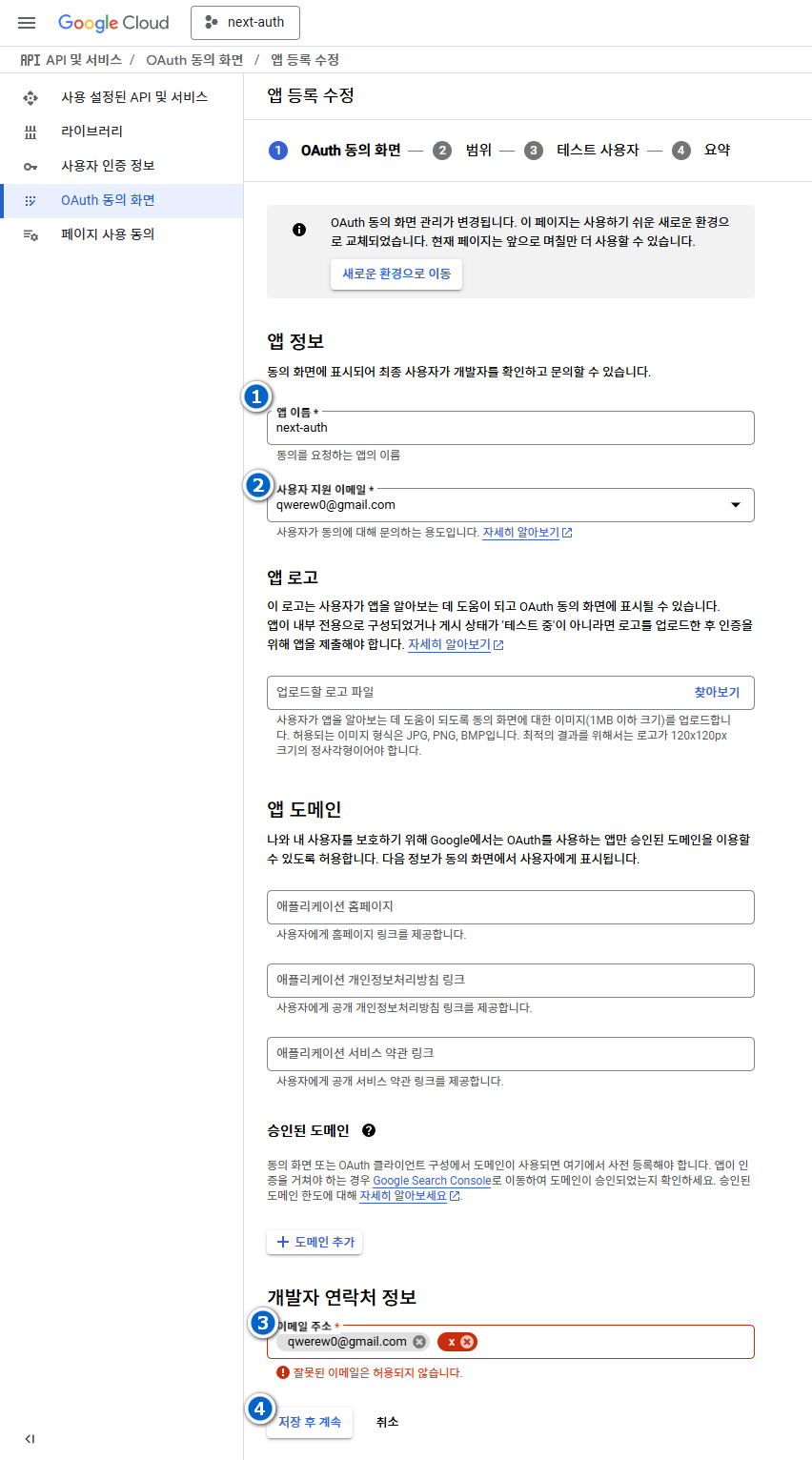
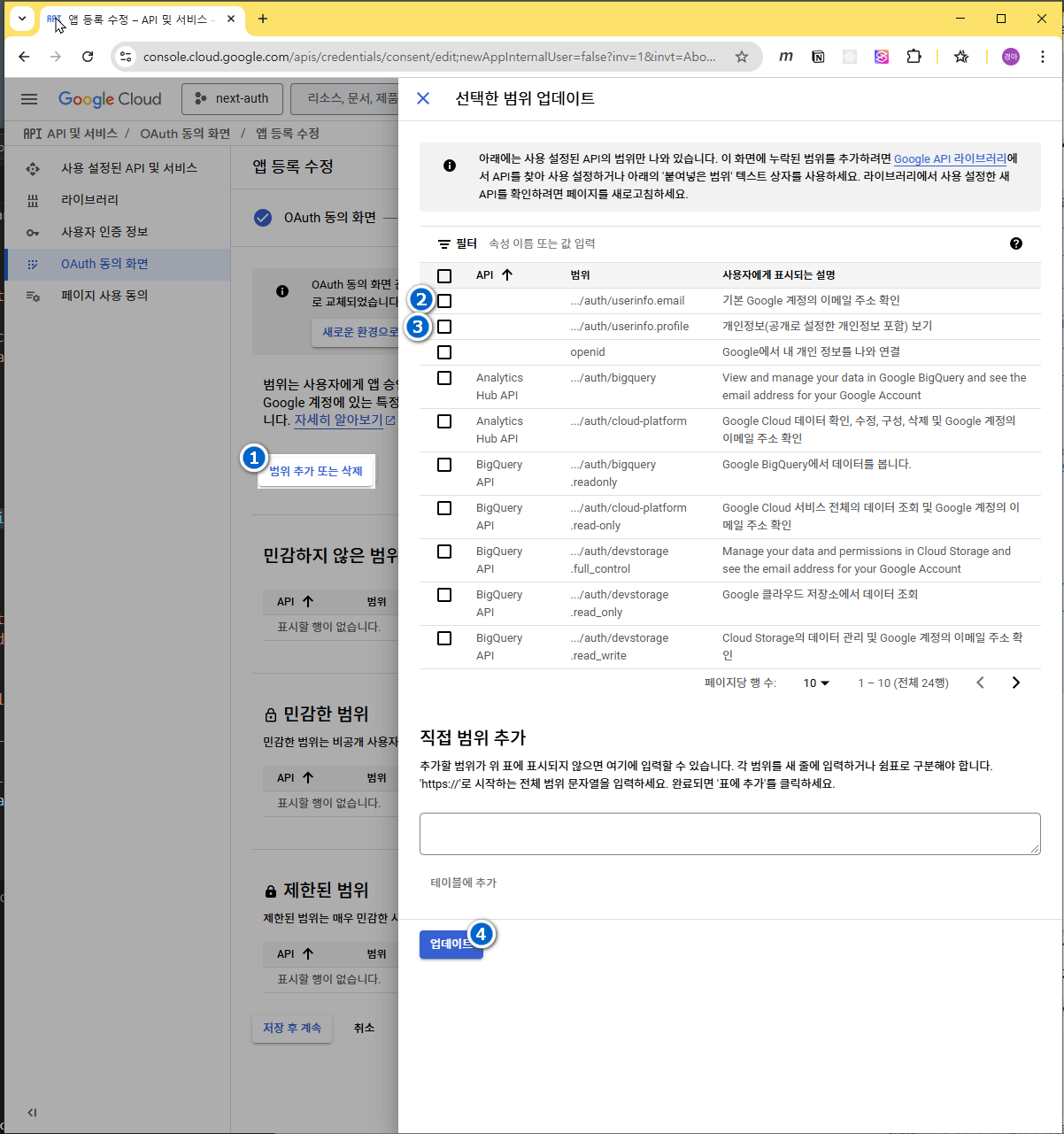
- 표시된 부분에 체크한 항목이 추가되었는지 확인후 다음진행
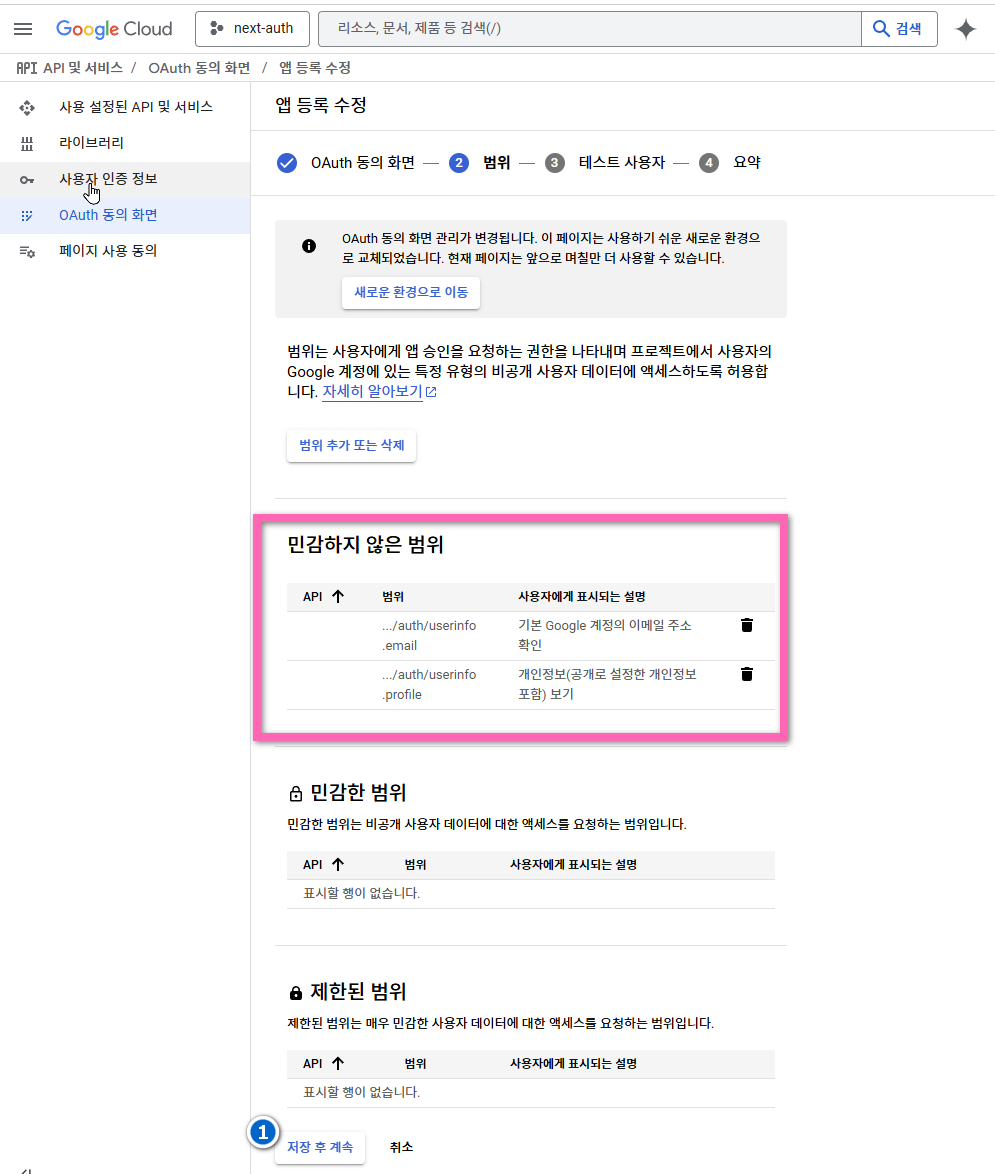
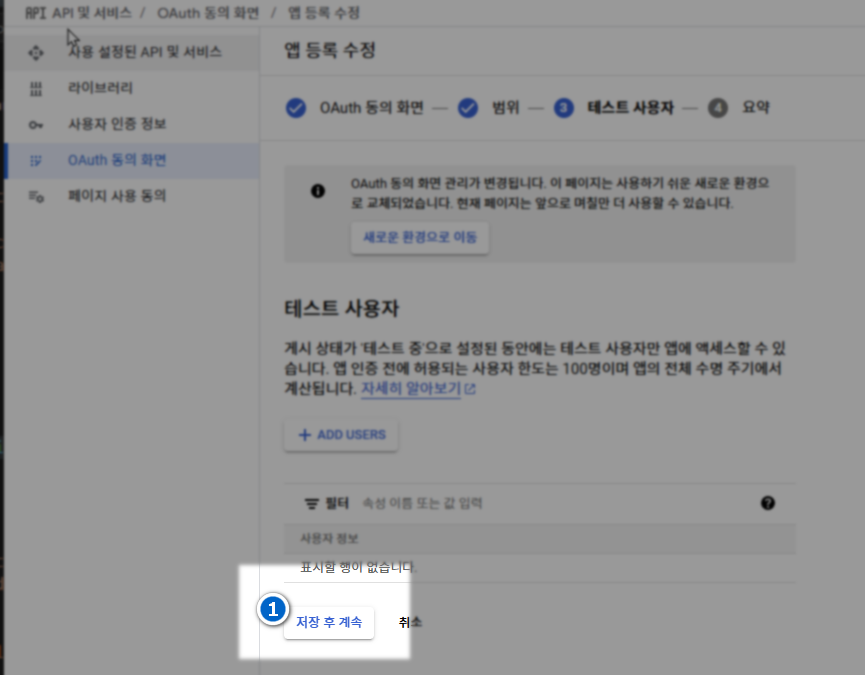
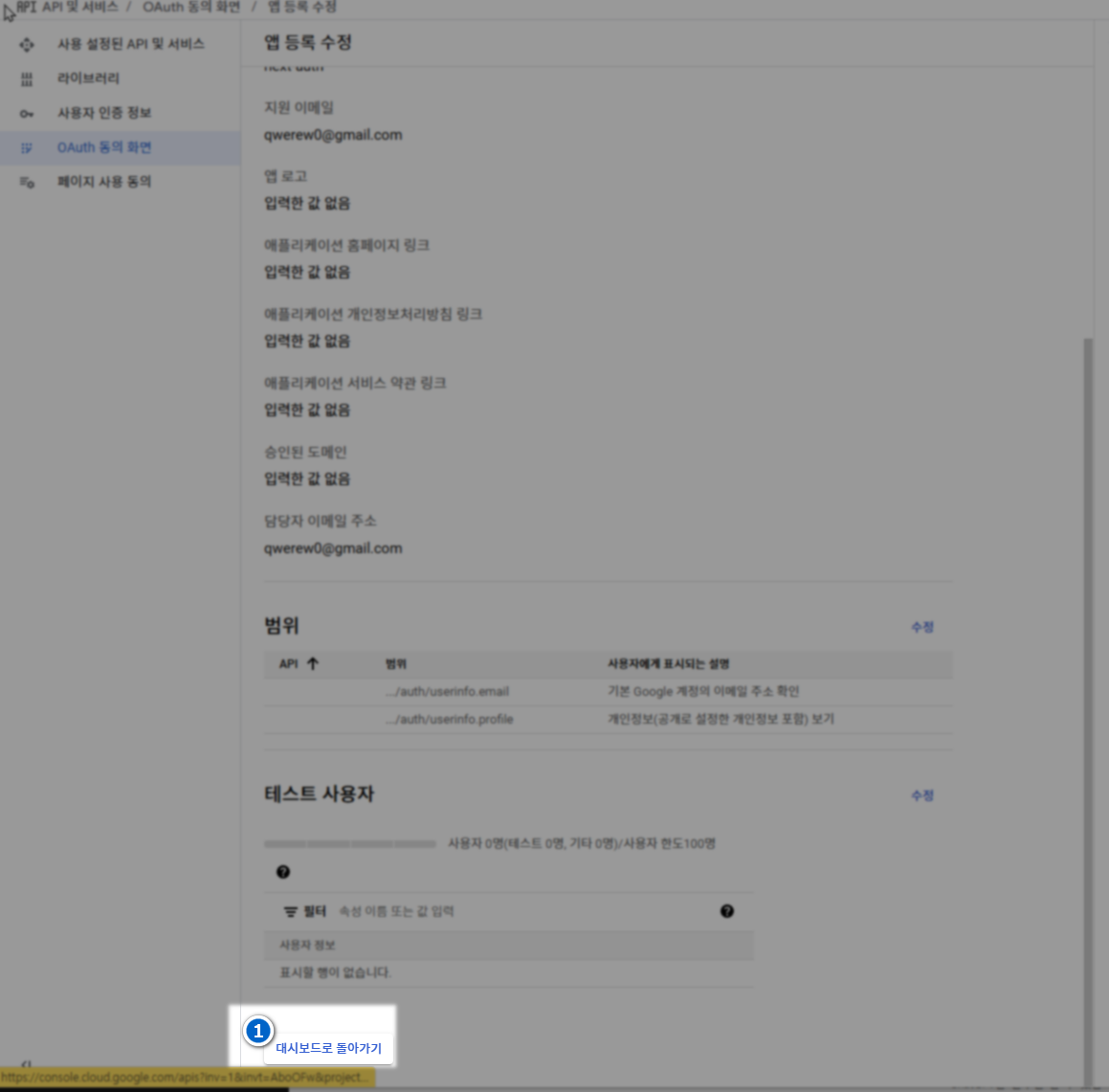
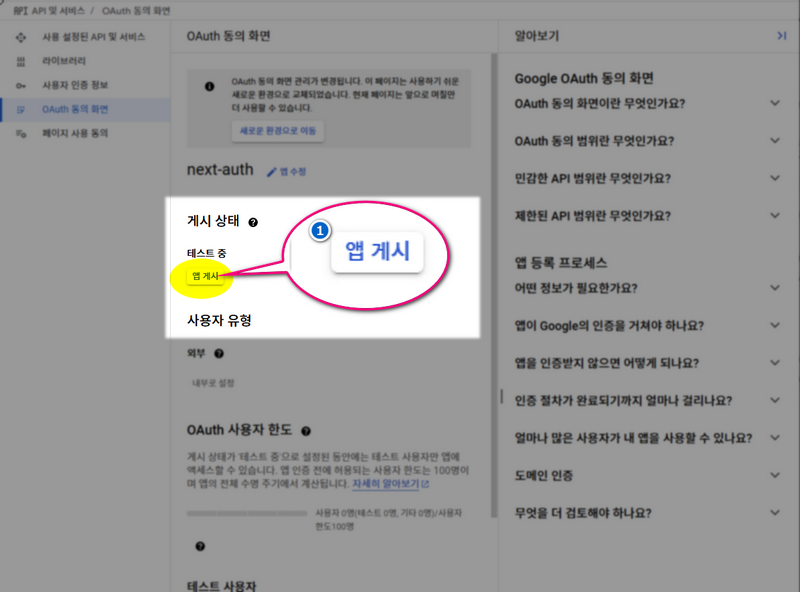
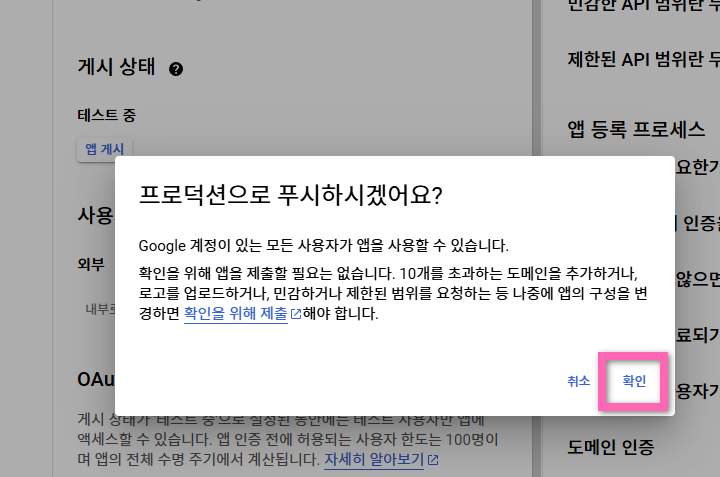
3-2-3-자격증명만들기
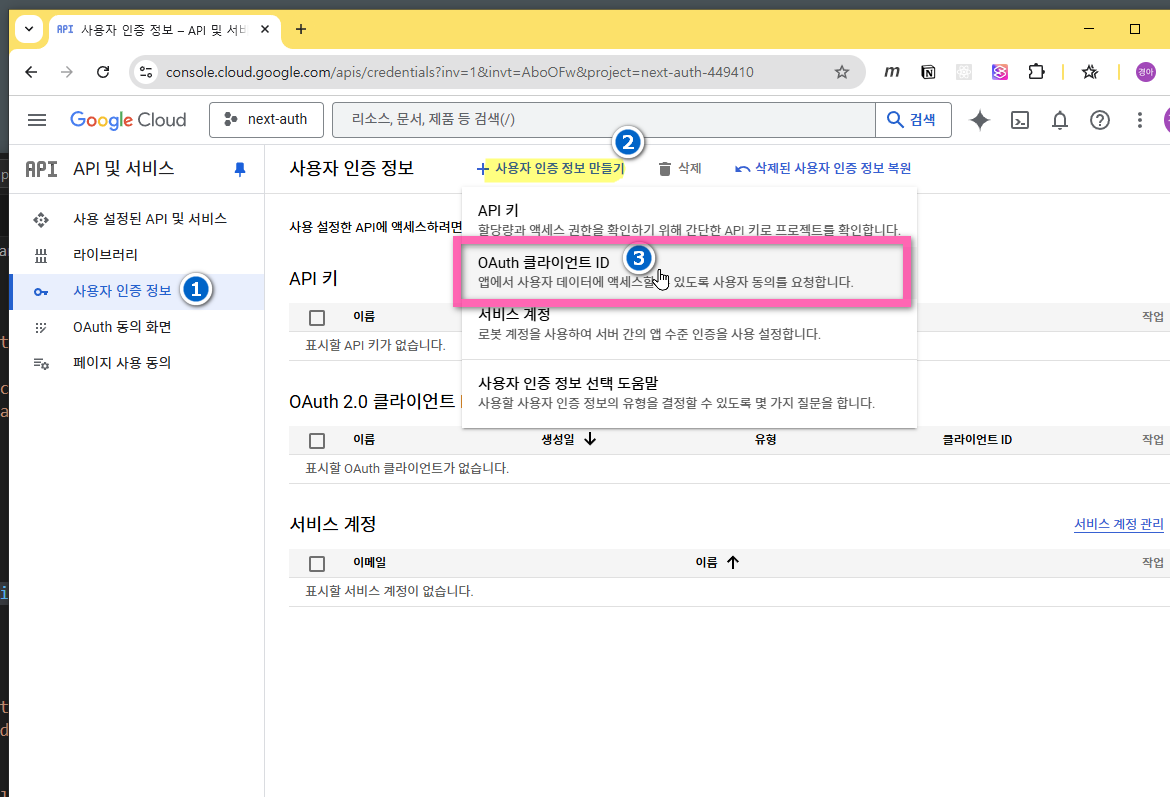
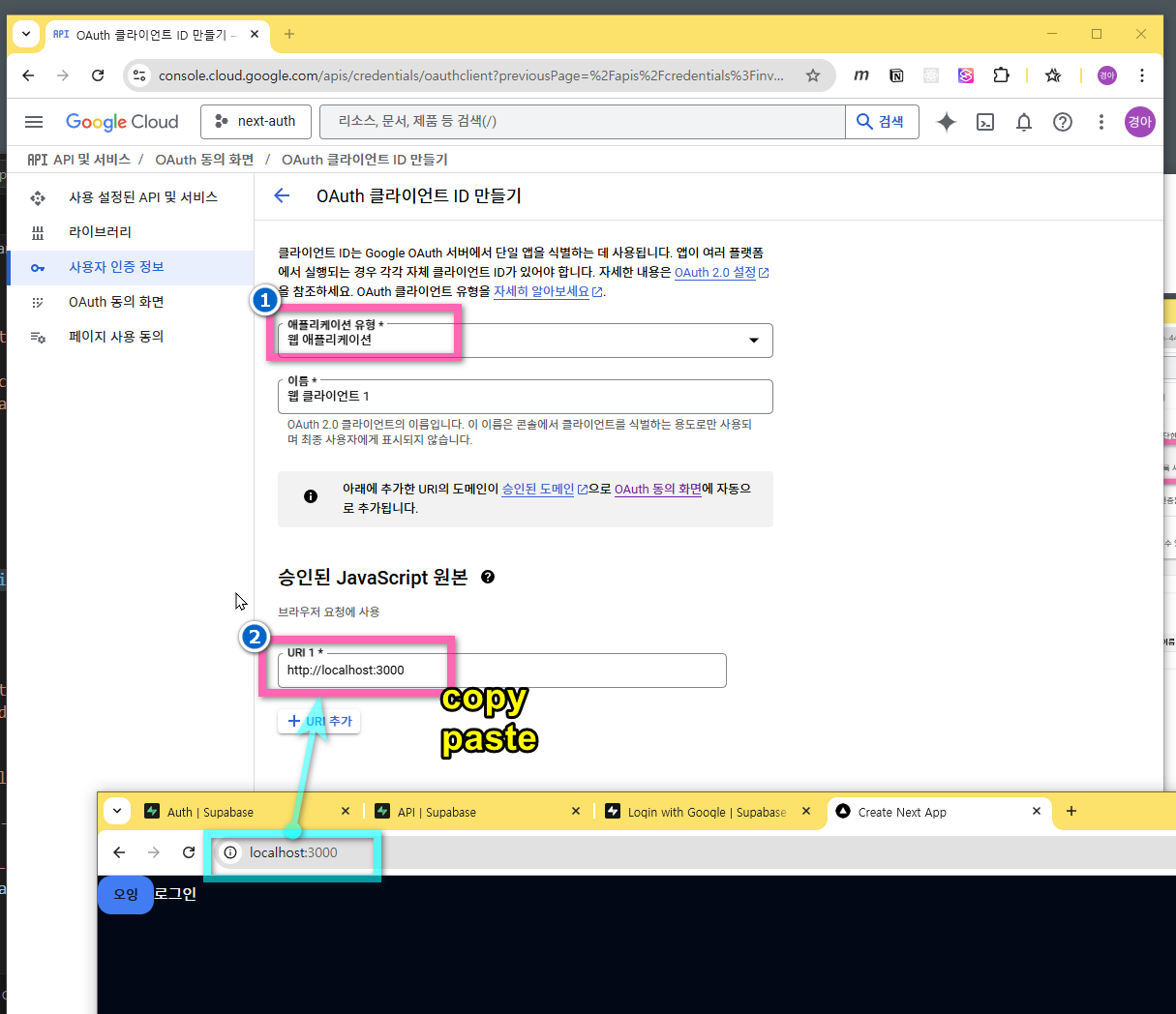
- 리디렉션 url 은 수파베이스의 Authentication 으로 이동하여 복사한다.
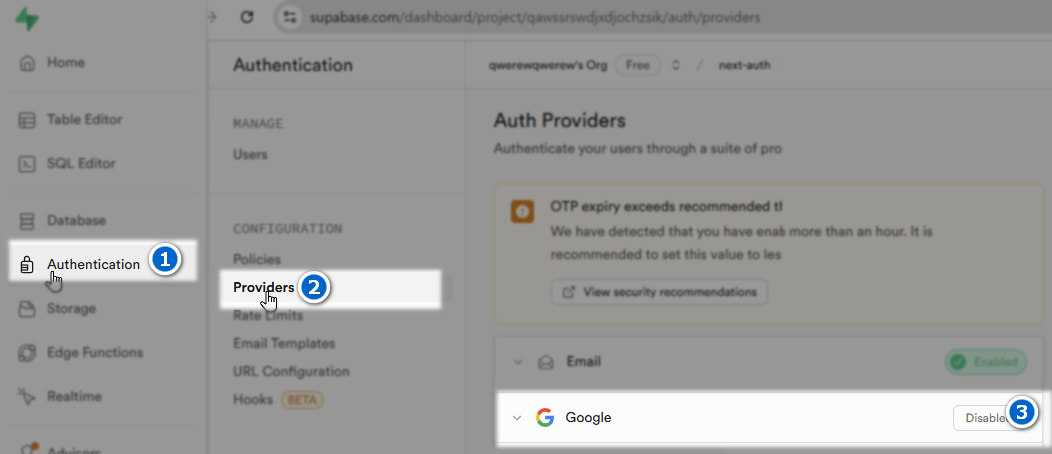
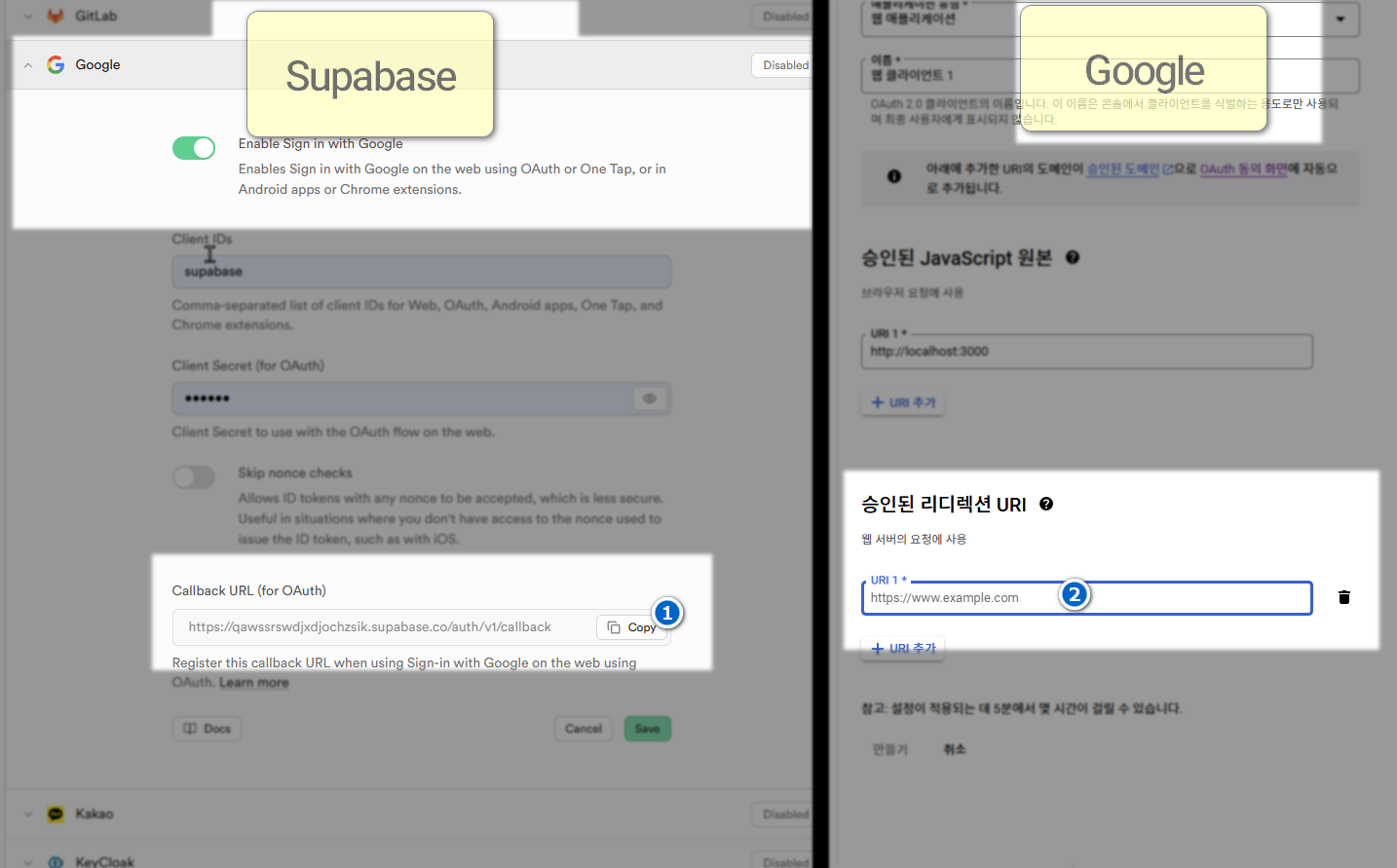
- Google → 만들기 클릭
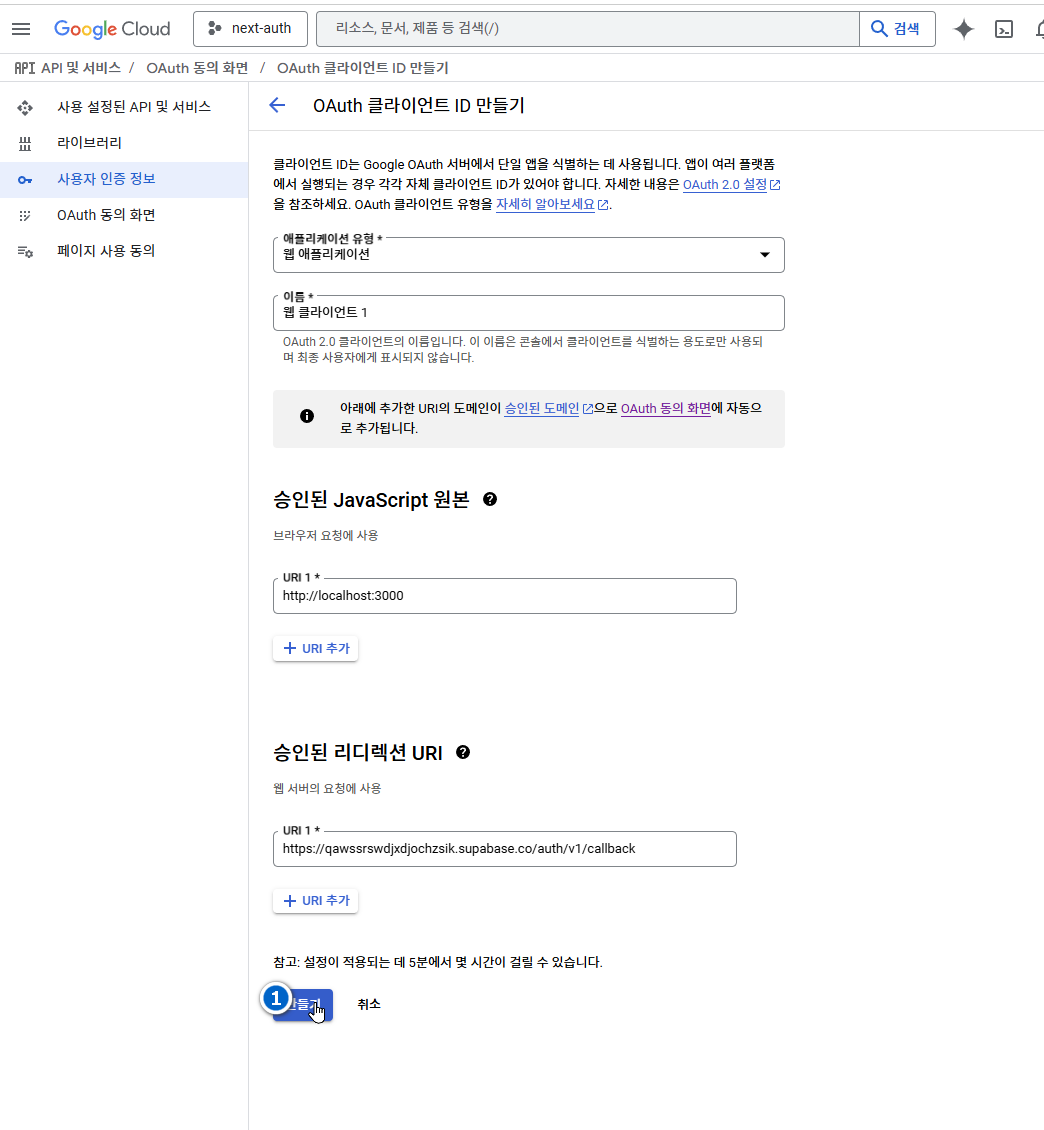
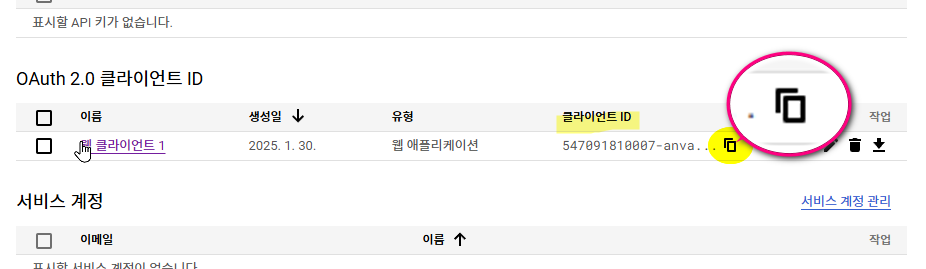
- 구글 클라이언트 아이디 복사
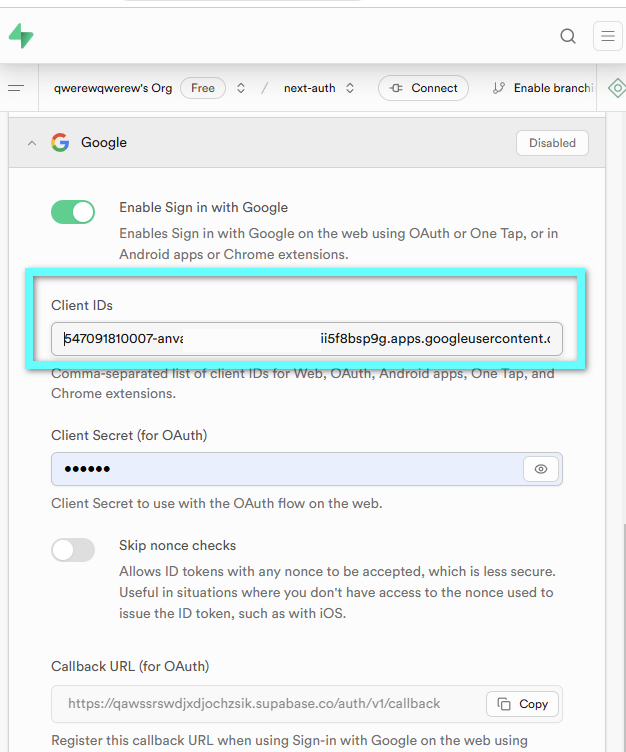
- 수파베이스에 붙여넣기
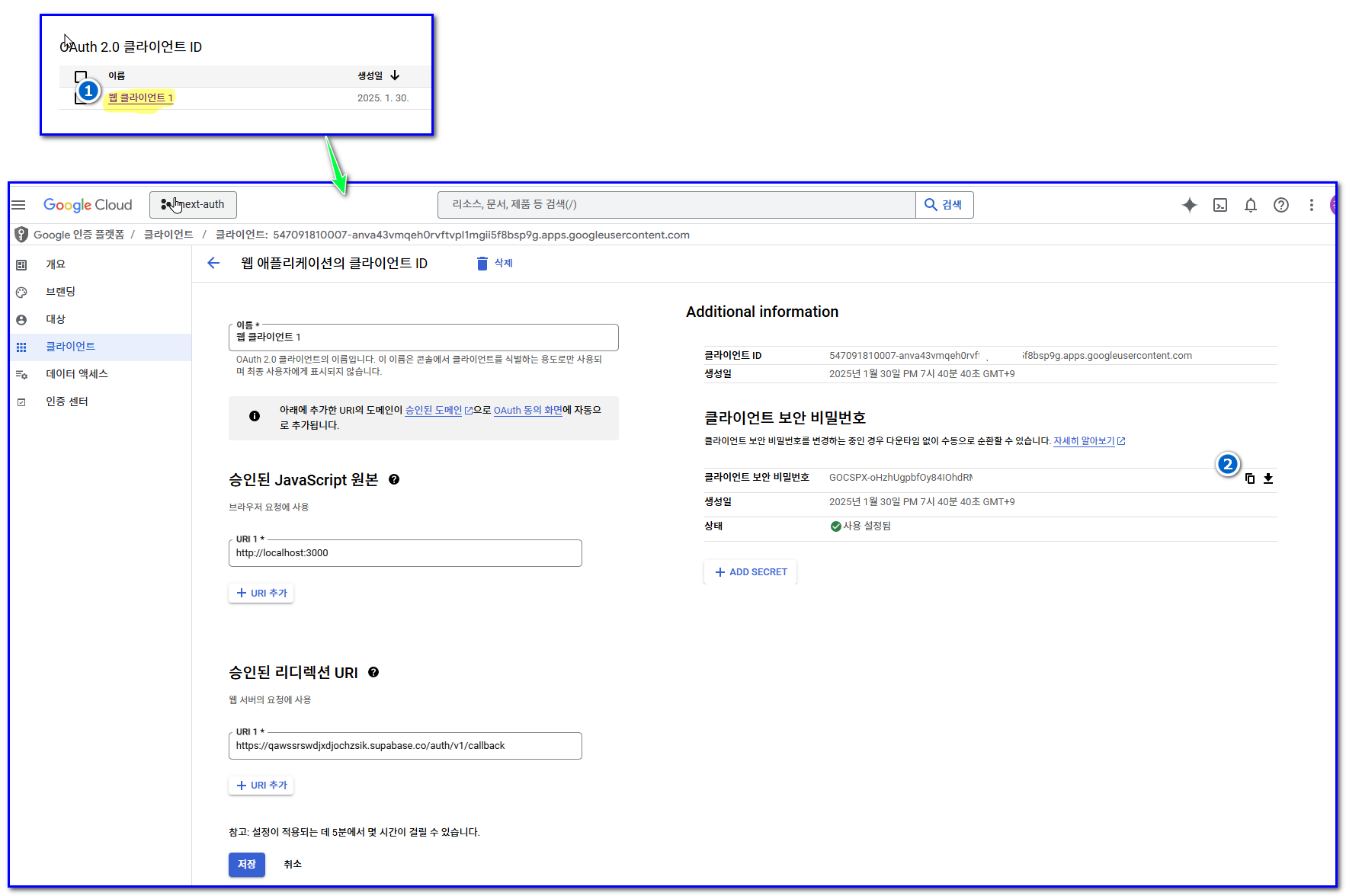
- 구글 비밀키 복사
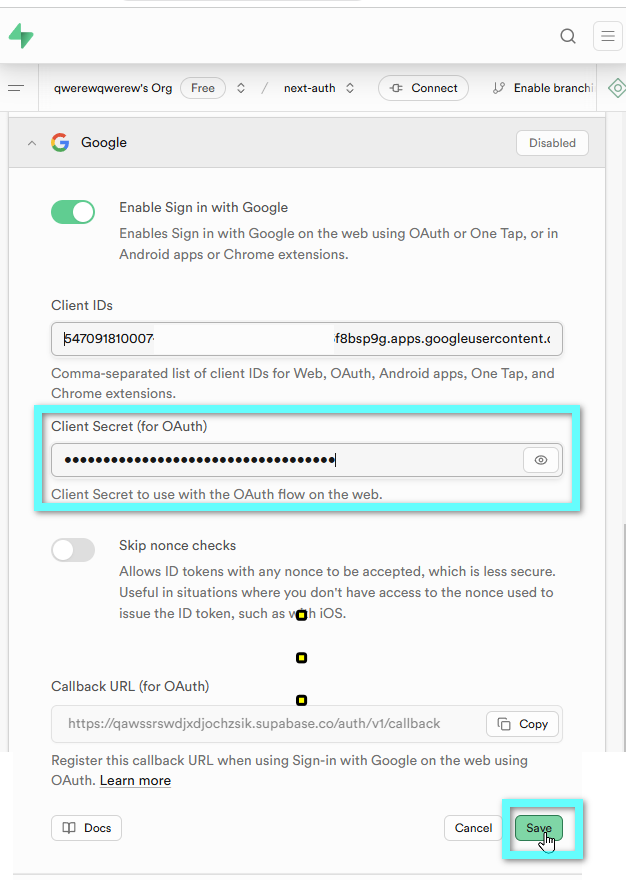
- 수파베이스에 붙여넣기 다른 것은 비워놓고 저장 클릭
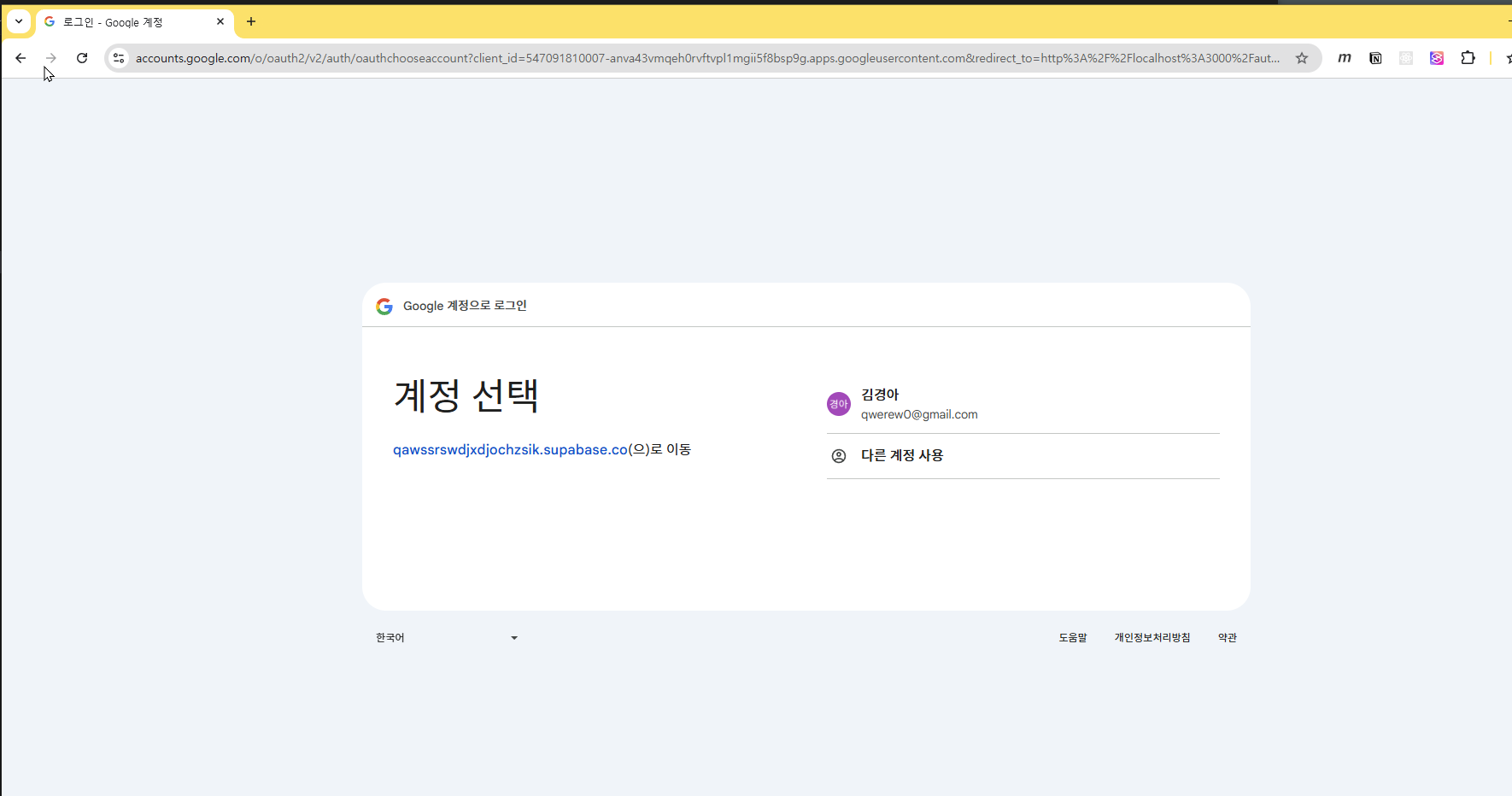
3-2-4-테스트