
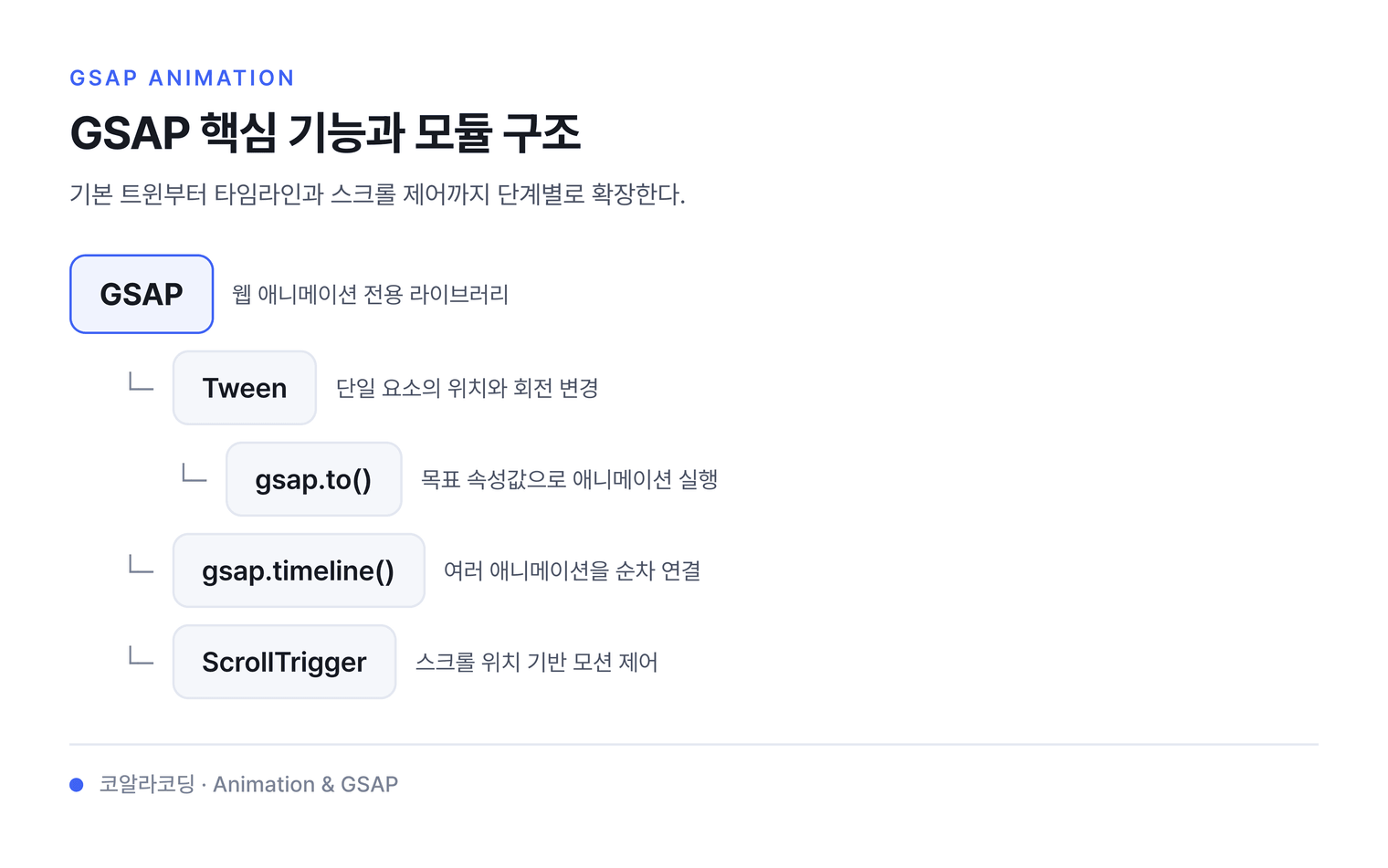
1. gsap
gsap공식사이트
gsap코드펜
gsap치트시트
gsap의 모든 기능이 있는 cdn 링크
웹 브라우저에서 애니메이션을 구현하기 위한 자바스크립트 라이브러리
기존 CSS나 순수 자바스크립트보다 탁월한 퍼포먼스를 발휘할 수 있도록 최적화 된 애니메이션 전용 라이브러리이며, HTML5와 Flash 두 개의 플랫폼에서 사용할 수 있다.
GreenSock Engaging the Internet GASP은 애니메이션을 쉽게 적용할 수 있는 라이브러리로 탁월한 퍼포먼스로 알려져 있다.
- gsap.to() 메소드를 이용해 자연스러운 움직임을 만들 수 있다
- 다양한 종류의 애니메이션을 제공하며 필요에 따라 플러그인 형태로 추가하여 사용할수 있다. (일부유료)
- 기본 기능만을 사용할때는 gsap.js 혹은 gsap.min.js 을 사용한다.
- 문법은 camelCase 를 사용한다. ex) background-color (x), backgroundColor (O)
2. 설치
2.1. cdn
<script src="https://cdnjs.cloudflare.com/ajax/libs/gsap/3.12.5/gsap.min.js"></script>
2.2. npm
npm install gsap
2.3. css transform과 gsap 속성 비교
| gsap | css |
|---|---|
x: 100 |
transform: translateX(100px) |
y: 100 |
transform: translateY(100px) |
rotation: 360 |
transform: rotate(360deg) |
rotationX: 360 |
transform: rotateX(360deg) |
rotationY: 360 |
transform: rotateY(360deg) |
skewX: 45 |
transform: skewX(45deg) |
skewY: 45 |
transform: skewY(45deg) |
scale: 2 |
transform: scale(2,2) |
scaleX: 2 |
transform: scaleX(2) |
scaleY: 2 |
transform: scaleY(2) |
xPercent: -50 |
transform: translateX(-50%) |
yPercent: -50 |
transform: translateY(-50%) |
2.4. 기타속성
| 속성 | 설명 |
|---|---|
| delay | 애니메이션 시작 전 지연 시간 지정 |
| repeat | 반복횟수 지정, -1(무한반복) |
| repeatDelay | 반복 전 지연 시간 지정 |
| yoyo | true, 반복할 때 뒤로 되돌리기 |
| onComplete | 애니메이션이 끝났을 때 호출할 콜백함수 지정 |
| onUpdate | 애니메이션이 업데이트될 때마다 호출한 콜백함수 지정 |
| ease | 가속도 (power1, elastic, bounce,…) |
| stagger | 타겟과 요소 애니메이션을 위한 시작 시간 지정 |
3. Tween
3.1. 예제
애니메이션 작업을 수행한다. 타겟(애니메이션을 적용하려는 개체), 지속 시간 및 애니메이션을 적용하려는 속성을 입력하면 간단히 애니메이션을 완성해준다.
트윈을 생성하는 매서드는 3종류가 있다.
- gsap.to()
- gsap.from()
- gsap.fromTo()
이동
css로 transform: translateX(200px) 과 같은 효과를 주며 duration은 미작성시 0.5초 이다
<head>
    <style>
        .box {
            margin: 15px;
        }
        .box1 {
            width: 100px;
            height: 100px;
            background: orange;
        }
        .box2 {
            width: 200px;
            height: 100px;
            background: greenyellow;
        }
        .box3 {
            width: 100px;
            height: 200px;
            background: tomato;
        }
    </style>
</head>

<body>
    <div class="box box1"></div>
    <div class="box box2"></div>
    <div class="box box3"></div>

    <script src="https://cdnjs.cloudflare.com/ajax/libs/gsap/3.6.0/gsap.min.js"></script>
    <script>
        gsap.to('.box', {
            x: 200,
        });
    </script>
</body>
이동+회전
기본구조는 01과 같다.스크립트만 수정한다.
gsap.to('.box1', { duration: 3, x: 200, opacity: 0.2, ease: 'steps(10)', delay: 2 });
gsap.to('.box2', { duration: 3, x: 200, rotate: 720, scale: 1.3 });
gsap.to('.box3', { duration: 3, x: 200, ease: 'elastic', backgroundColor: 'red', width: 300, fontSize: 60 });
from 으로 변경하면 에니메이션이 반전되어 실행된다.
gsap.from('.box1', { duration: 3, x: 200, opacity: 0.2, ease: 'steps(10)', delay: 2 });
gsap.from('.box2', { duration: 3, x: 200, rotate: 720, scale: 1.3 });
gsap.from('.box3', { duration: 3, x: 200, ease: 'elastic', backgroundColor: 'red', width: 300, fontSize: 60 });
03. 이동+투명도 조절
"h2" 요소에 1초 동안 투명도를 30%로 애니메이션 적용하고 ".orange" 요소는 2초 동안 x축으로 300pixel 이동하고 ".grey"는 Y축으로 300px 이동. “.green” 요 소는 3초 동안 360도 회전하고 크기를 50%로 축소하는 애니메이션 을 적용한다
<h2 class="title">gsap.to() Basic Usage</h2>
<div class="box orange"></div>
<div class="box grey"></div>
<div class="box green"></div>
body {
    margin: 10px;
}
.box {
    width: 100px;
    height: 100px;
}
.orange {
    background: orange;
}
.grey {
    background: grey;
}
.green {
    background: green;
}
gsap.to('h2.title', { duration: 1, opacity: 0.3 });
gsap.to('.orange', { duration: 2, x: 300 });
gsap.to('.grey', { duration: 2, y: 300 });
gsap.to('.green', { duration: 3, rotation: 360, scale: 0.5 });
4. easing
easing 은 가속도를 설정할수 있는 속성이다.
사용할수 있는 값은 아래와 같다.
none, power1, power2, power3, power4, back, elastic, bounce, rough, slow, steps, circ, expo, sine
[]공식문서](https://gsap.com/docs/v3/Eases/)
4.1. 예제
04. 가속도
<section id="title">
    <div class="box box1">none</div>
    <div class="box box2">power1</div>
    <div class="box box3">power2</div>
    <div class="box box4">power3</div>
    <div class="box box5">power4</div>
    <div class="box box6">back</div>
    <div class="box box7">elastic</div>
    <div class="box box8">bounce</div>
    <div class="box box9">rough</div>
    <div class="box box10">slow</div>
    <div class="box box11">steps</div>
    <div class="box box12">circ</div>
    <div class="box box13">expo</div>
    <div class="box box14">sine</div>
</section>
* {
    margin: 0;
    padding: 0;
    box-sizing: border-box;
}

#title {
    width: 700px;
    margin: 100px auto;
}

.box {
    background-color: purple;
    width: 50px;
    height: 50px;
    border-radius: 50%;
    text-align: center;
    line-height: 50px;
    font-size: 12px;
}
gsap.to('.box1', { x: 600, ease: 'none', duration: 5 });
gsap.to('.box2', { x: 600, ease: 'power1', duration: 5 });
gsap.to('.box3', { x: 600, ease: 'power2', duration: 5 });
gsap.to('.box4', { x: 600, ease: 'power3', duration: 5 });
gsap.to('.box5', { x: 600, ease: 'power4', duration: 5 });
gsap.to('.box6', { x: 600, ease: 'back', duration: 5 });
gsap.to('.box7', { x: 600, ease: 'elastic', duration: 5 });
gsap.to('.box8', { x: 600, ease: 'bounce', duration: 5 });
gsap.to('.box9', { x: 600, ease: 'rough', duration: 5 });
gsap.to('.box10', { x: 600, ease: 'slow', duration: 5 });
gsap.to('.box11', { x: 600, ease: 'steps(5)', duration: 5 });
gsap.to('.box12', { x: 600, ease: 'circ', duration: 5 });
gsap.to('.box13', { x: 600, ease: 'expo', duration: 5 });
gsap.to('.box14', { x: 600, ease: 'sine', duration: 5 });
5. gsap.timeline()
타임라인 메서드는 애니메이션의 시간을 지정할수 있어 다양한 모션 구현시 편리하다.
[]공식문서]([https://gsap.com/docs/v3/GSAP/gsap.timeline()/](https://gsap.com/docs/v3/GSAP/gsap.timeline()/))
5.1. 예제
04. timeline
<div class="one"></div>
<div class="two"></div>
<div class="three"></div>
<div class="four"></div>
* {
    margin: 0;
    padding: 0;
    box-sizing: border-box;
}

body {
    overflow: hidden;
}

div {
    width: 100px;
    height: 100px;
}

.one {
    background: red;
}

.two {
    background: green;
}

.three {
    background: blue;
}

.four {
    background: pink;
}
let tl = gsap.timeline();
//total duration:
tl.to('.one', { duration: 2, x: 500 })
    //2초 동안 x축으로 500px

    .to('.two', { duration: 3, x: 500 }, 1)
    // 1초 후 3초동안 x축으로 500px(1은 absolute값)

    .to('.three', { duration: 1, x: 500 }, '<')
    //1초 후 1초동안 x축으로 500px(<은 이전 target의 timeline을 따라감)

    .to('.four', { duration: 1, x: 500 }, '<0.5');
//1.5초후 1초동은 x축으로 500px(<0.5를 추가하면 이전 target보다 0.5초 뒤 실행
05. parallax
timeline 을 활용하여 다른 클래스의 요소들에 시차애니메이션을 적용한다.
변수 t1을 선언하고 기본값으로 1초를 delay로 할당한다.
<section id="title">
    <div class="container">
        <h1 class="animation1">JavaScript GSAP Library Animation</h1>
        <p class="animation1">Lorem ipsum dolor sit amet, consectetur adipisicing elit. Tempore, dolore.</p>
        <a class="animation1" href="#">Button</a>
    </div>
</section>
<section>
    <div class="box box1"></div>
    <div class="box box2"></div>
</section>
<section id="thumbnail">
    <img src="http://placekitten.com/200/300" />
</section>
* {
    margin: 0;
    padding: 0;
    box-sizing: border-box;
}

body {
    overflow: hidden;
}

#title {
    width: 700px;
    margin: 100px auto;
}

.container {
    padding: 20px;
}

h1 {
    margin-bottom: 20px;
}

p {
    margin-bottom: 15px;
}

a {
    display: block;
    width: 100px;
    padding: 10px;
    background-color: blueviolet;
    text-decoration: none;
    color: white;
    text-align: center;
    border-radius: 10px;
}

#thumbnail {
    width: 420px;
    height: 300px;
    position: absolute;
    right: 0;
    bottom: 0;
}
.box {
    width: 100px;
    height: 100px;
}

.box1 {
    background-color: red;
}

.box2 {
    background-color: blue;
}
let t1 = gsap.timeline({ defaults: { duration: 1 } });
//defaults라는 특수 속성은 모든 하위 트윈과 타임라인에서 값을 상속할 수 있다.
//애니메이션을 1초동안 진행하는 기본값 설정

t1.from('h1', { y: -50, opacity: 0 })
    .from('p', { y: -50, opacity: 0 }, '-=0.5') // 타임라인 종료 0.5초 전 (오버랩)
    .from('a', { y: -50, opacity: 0 }, '+=1') // 타임라인 종료 1초 후 (갭)
    .from('img', { y: 200, opacity: 0 }, '3'); // 타임라인 시작으로부터 3초 후 (절대적)
    .from('.box1', { x: 200, opacity: 0 }, "<") // 이전 트윈 타임라인 시작지점
    .to('.box2', { rotate: 360, x:800, opacity: 1}, ">") // 이전 트윈 타임라인 종료지점
06. 클릭시 반대로 진행
문서의 구조와 스타일은 이전과 동일
let t1 = gsap.timeline({ defaults: { duration: 1 } });

t1.from('h1', { y: -50, opacity: 0 })
    .from('p', { y: -50, opacity: 0 }, '-=0.5') // 타임라인 종료 0.5초 전 (오버랩)
    .from('a', { y: -50, opacity: 0 }, '-=0.5') // 타임라인 종료 0.5초 전 (오버랩)
    .from('img', { y: 200, opacity: 0 }, '-=0.5')
    .from('.box1', { x: 200, opacity: 0 }, '<') // 이전 트윈 타임라인 시작지점
    .to('.box2', { rotate: 360, x: 800, opacity: 1 }, '>'); // 이전 트윈 타임라인 종료지점

document.getElementById('cta').addEventListener('click', (e) => {
    e.preventDefault();
    t1.reversed() ? t1.play() : t1.reverse();
    //타임라인의 진행상태가 반전 되었을경우 시작하고 아닐경우 반전
});
애니메이션의 핸들링이 궁금하다면?
핸들링예제
<!DOCTYPE html>
<html lang="ko">
    <head>
        <meta charset="UTF-8" />
        <meta name="viewport" content="width=device-width, initial-scale=1.0" />
        <title>Document</title>
        <style>
            .box {
                width: 100px;
                height: 100px;
            }

            .box1 {
                background-color: red;
            }
        </style>
    </head>

    <body>
        <div class="box box1"></div>
        <div class="nav">
            <button id="play">시작</button>
            <button id="pause">정지</button>
            <button id="resume">재개</button>
            <button id="reverse">반전</button>
            <button id="restart">재시작</button>
        </div>
        <script src="https://cdnjs.cloudflare.com/ajax/libs/gsap/3.8.0/gsap.min.js"></script>
        <script>
            const tween = gsap.to(".box1", { duration: 8, x: 400, width: 400, paused: true, });

            document.querySelector("#play").onclick = function () { return tween.play(); };
            document.querySelector("#pause").onclick = function () { return tween.pause(); };
            document.querySelector("#resume").onclick = function () { return tween.resume(); };
            document.querySelector("#reverse").onclick = function () { return tween.reverse(); };
            document.querySelector("#restart").onclick = function () { return tween.restart(); }.

            //resume 애니메이션 멈춘곳 부터 재생을 다시 시작
        </script>
    </body>
</html>
6. scrollTrigger
스크롤트리거는 gsap 의 플러그인 으로 추가설치 해야한다.
6.1. 주요속성
| 속성 | 설명 |
|---|---|
| trigger | 애니메이션이 시작되거나 끝나는 지점을 감지하는 요소이다. |
| start | 애니메이션 트리거가 시작되는 스크롤 위치이다. 형식은 "시작점 끝점"이다. |
| end | 애니메이션 트리거가 끝나는 스크롤 위치이다. 형식은 "시작점 끝점"이다. |
| scrub | 스크롤 위치에 따라 애니메이션이 연동되어 재생되는지 여부이다. true로 설정하면 스크롤에 따라 애니메이션이 재생된다. |
| pin | 특정 요소를 스크롤 동안 고정시키는 기능이다. true로 설정하면, 지정된 요소가 고정된다. |
| markers | 시작점, 끝점, 그리고 트리거 요소의 위치를 화면에 표시하는 개발 도구이다. true로 설정하면 마커가 표시된다. |
| toggleActions | 트리거 지점마다 애니메이션의 실행제어 • onEnter: scroll-start ~ scroll-end 사이 • onLeave : scroll-end 부분을 넘어갈 때 • onEnterBack : scroll-start ~ scroll-end 사이 재 진입시• onLeaveBack : scroll-end부분 재 퇴장시 • 액션값: play, pause, resume, reset, restart, complete, reverse(중지된 곳부터 재생), none; • 기본값 : toggleActions:play none none none |
| id | ScrollTrigger 인스턴스에 고유 식별자를 부여한다. 여러 ScrollTrigger를 관리할 때 유용하다. |
| onEnter | 스크롤이 트리거 시작 지점을 지날 때 실행할 콜백 함수이다. |
| onLeave | 스크롤이 트리거 끝 지점을 벗어날 때 실행할 콜백 함수이다. |
| onEnterBack | 스크롤이 트리거 끝 지점에서 시작 지점으로 돌아올 때 실행할 콜백 함수이다. |
| onLeaveBack | 스크롤이 트리거 시작 지점을 다시 벗어날 때 실행할 콜백 함수이다. |
| pinSpacing | pin이 활성화된 요소의 공간을 어떻게 처리할지 정의한다. "margin" 또는 "padding" 값을 사용할 수 있다. |
6.2. 주요메서드
| 메서드 | 설명 |
|---|---|
| create | 새로운 ScrollTrigger 인스턴스를 생성한다. 인스턴스는 개별 애니메이션의 스크롤 트리거 설정을 관리한다. |
| kill | ScrollTrigger 인스턴스를 제거한다. 인스턴스에 의해 생성된 변경사항들도 함께 제거된다 |
6.3. 예제
<script src="https://cdn.jsdelivr.net/npm/gsap@3.12.5/dist/gsap.min.js"></script>
<script src="https://cdn.jsdelivr.net/npm/gsap@3.12.5/dist/ScrollTrigger.min.js"></script>
07. 스크롤트리거 기본
<section></section>
<section>
    <div class="box"></div>
</section>
<section></section>
.box {
    width: 200px;
    height: 200px;
    background: pink;
}

section {
    height: 100vh;
}
- 섹션별 배경색 추가
const bg = document.querySelectorAll('section');
const colors = {
    r: 255,
    g: 255,
    b: 255,
};

bg.forEach((o, i) => {
    o.style.backgroundColor = `rgb(${colors.r - i * 100},${colors.g - i * 50},${colors.b - i * 50})`;
});
- 스크롤트리거 작성
gsap.to('.box', {
    scrollTrigger: '.box',
    x: '50vw',
});
08. 스크롤트리거-애니메이트
- html
<main class="cont">
    <section class="sec1 item">
        <h2 class="num">01</h2>
        <div class="box"></div>
    </section>

    <section class="sec2 item">
        <h2 class="num">02</h2>
        <div class="box"></div>
    </section>

    <section class="sec3 item">
        <h2 class="num">03</h2>
        <div class="box"></div>
    </section>

    <section class="sec4 item">
        <h2 class="num">04</h2>
        <div class="box"></div>
    </section>

    <section class="sec5 item">
        <h2 class="num">05</h2>
        <div class="box"></div>
    </section>

    <section class="sec6 item">
        <h2 class="num">06</h2>
        <div class="box"></div>
    </section>

    <section class="sec7 item">
        <h2 class="num">07</h2>
        <div class="box box7"></div>
    </section>

    <section class="sec8 item">
        <h2 class="num">08</h2>
        <div class="box"></div>
    </section>

</main>
- css
@import url(https://qwerewqwerew.github.io/source/style/reset.css);
.cont {
    overflow: hidden;
}
.item {
    width: clamp(50%, 100%, 100%);
    height: 100vh;
    position: relative;
    display: flex;
    align-items: center;
    justify-content: center;
    gap: 5vw;
}
.item:nth-child(2n) {
    background-color: gray;
}
.num {
    position: absolute;
    right: 20px;
    bottom: 20px;
    font-size: 5vw;
    line-height: 1;
}
.box {
    width: 10vw;
    height: 10vw;
    background-color: #ff1515;
    background-size: cover;
    background-position: center;
}
.active.box {
    filter: hue-rotate(100deg);
}
- js
const box1 = document.querySelector('.sec1 .box');
const box2 = document.querySelector('.sec2 .box');
const box3 = document.querySelector('.sec3 .box');
const box4 = document.querySelector('.sec4 .box');
const box5 = document.querySelector('.sec5 .box');
const box6 = document.querySelector('.sec6 .box');
const box7 = document.querySelector('.sec7 .box');
const box8 = document.querySelector('.sec8 .box');
const box9 = document.querySelector('.sec9 .box');
- jq
const box1 = $('.sec1 .box');
const box2 = $('.sec2 .box');
const box3 = $('.sec3 .box');
const box4 = $('.sec4 .box');
const box5 = $('.sec5 .box');
const box6 = $('.sec6 .box');
const box7 = $('.sec7 .box');
const box8 = $('.sec8 .box');
const box9 = $('.sec9 .box');
- gsap
// 01
gsap.to(box1, {
    duration: 2,
    x: 500,
    borderRadius: 100,
    rotation: 360,
});

// 02 : trigger
gsap.to(box2, {
    duration: 2,
    x: 500,
    rotation: 360,
    borderRadius: 100,
    backgroundColor: 'yellow',
    scrollTrigger: {
        trigger: box2,
    },
});

// 03 : toggleActions
gsap.to(box3, {
    duration: 2,
    x: 500,
    rotation: 360,
    borderRadius: 100,
    scrollTrigger: {
        trigger: box3,
        toggleActions: 'play none reverse none',
    },
});

// 04 : start, end
gsap.to(box4, {
    duration: 2,
    x: 500,
    rotation: 360,
    borderRadius: 100,
    scrollTrigger: {
        trigger: box4,
        start: 'top 50%',
        end: 'bottom 20%',
        toggleActions: 'play none reverse none',
        markers: true,
    },
});

// 05 : scrub
gsap.to(box5, {
    duration: 2,
    x: 500,
    rotation: 360,
    borderRadius: 100,

    scrollTrigger: {
        trigger: box5,
        start: 'top 50%',
        end: 'bottom 20%',
        scrub: true, //true, 1, 2...
        markers: false,
    },
});

// 06 : pin
gsap.to(box6, {
    duration: 2,
    x: 500,
    rotation: 360,
    borderRadius: 100,

    scrollTrigger: {
        trigger: box6,
        start: 'top 50%',
        end: 'bottom 200px',
        scrub: true,
        pin: true,
        markers: false,
    },
});

// 07 : toggleClass
gsap.to(box7, {
    duration: 2,
    x: 500,
    rotation: 360,
    borderRadius: 100,
    scrollTrigger: {
        trigger: box7,
        start: 'top center',
        end: 'bottom 20%',
        scrub: true,
        toggleClass: 'active',
        markers: false,
        id: 'box7',
    },
});

// 08 : callback
gsap.to(box8, {
    duration: 2,
    x: 500,
    rotation: 360,
    borderRadius: 100,

    scrollTrigger: {
        trigger: box8,
        start: 'top center',
        end: 'bottom 20%',
        scrub: true,
        markers: true,
        // onEnter: () => {console.log("onEnter")},
        // onLeave: () => {console.log("onLeave")},
        // onEnterBack: () => {console.log("onEnterBack")},
        // onLeaveBack: () => {console.log("onLeaveBack")},
        onUpdate: (self) => {
            console.log('onUpdate', self.progress.toFixed(3));
        },
        onToggle: (self) => {
            console.log('onToggle', self.isActive);
            myAni();
        },
    },
});
function myAni() {
    const txt = '<span>1</span>';
    box8.parent().append(txt);
}
09. 스크롤트리거-핀
- html 08번 예제와 유사하나 일부 요소가 추가된다.
<section class="sec2 item">
    <h2 class="num">02</h2>
    <div class="box i1"></div>
    <div class="box i2"></div>
    <div class="box i3"></div>
</section>

<section class="sec3 item">
    <h2 class="num">03</h2>
    <div class="box"></div>
    <div class="box"></div>
    <div class="box"></div>
    <div class="box"></div>
    <div class="box"></div>
</section>

<section class="sec4 item">
    <h2 class="num">04</h2>
    <div class="box"></div>
</section>

<section class="sec5 item">
    <h2 class="num">05</h2>
    <div class="text t1">Lorem</div>
    <div class="text t2">Lorem</div>
    <div class="text t3">Lorem</div>
    <div class="text t4">Lorem</div>
</section>

<section class="sec6 item">
    <h2 class="num">06</h2>
    <div class="text">Lorem</div>
</section>

<section class="sec7 item">
    <h2 class="num">07</h2>
    <div class="text t1">Lorem</div>
    <div class="text t2">Ipsum</div>
    <div class="text t3">Gsap</div>
    <div class="text t4">HTML</div>
    <div class="text t5">CSS</div>
    <div class="text t6">Javascript</div>
    <div class="text t7">Jquery</div>
</section>

<section class="sec8 item">
    <h2 class="num">08</h2>
    <div class="text t1">Lorem</div>
    <div class="text t2">Ipsum</div>
    <div class="text t3">Gsap</div>
    <div class="box"></div>
</section>

<section class="sec9 item">
    <h2 class="num">09</h2>
    <div class="box"></div>
</section>
- css 추가
.sec4 .box,
.sec9 .box {
    background: url(http://qwerew.cafe24.com/images/1.jpg) no-repeat center center/100%;
}
.text {
    font-size: 10rem;
}
.sec5.item {
    flex-direction: column;
}
.sec7 .text {
    position: absolute;
    left: 50%;
    top: 50%;
    transform: translate(-50%, -50%);
    background-color: #fff;
    width: 100%;
    padding: 2rem;
    text-align: center;
}
- js
//01 : 이미지 애니메이션 주기
const ani1 = gsap.timeline();
ani1.to('.sec1 .box', { rotation: 450, scale: 0, borderRadius: 200 }).to('.sec1 .box', { rotation: 360 * 5, scale: 1, borderRadius: 20 });
ScrollTrigger.create({
    animation: ani1,
    trigger: '.sec1',
    start: 'top top',
    end: '+=2000', //시작 부분부터 2000px까지 스크롤 한 후종료
    scrub: true,
    pin: true, //화면고정 //true | 요소이름
    anticipatePin: 1,
    markers: true,
    id: 'sec1',
});

//02 : 순차 나타나기
const ani2 = gsap.timeline();
ani2.from('.sec2 .i1', { y: 200, autoAlpha: 0 }).from('.sec2 .i2', { y: 100, autoAlpha: 0 }).from('.sec2 .i3', { y: -100, autoAlpha: 0 });

ScrollTrigger.create({
    animation: ani2,
    trigger: '.sec2',
    start: 'top top',
    end: '+=2000',
    scrub: true,
    pin: true,
    anticipatePin: 1,
    markers: true,
});

//03 : 랜덤
const ani3 = gsap.timeline();
ani3.from('.sec3 .box', {
    y: -300,
    scale: 0.5,
    autoAlpha: 0,
    ease: 'back.out(4)',
    //stagger: 0.3, // 0.3초 간격으로 실행
    stagger: {
        amount: 3, //총 3초 동안 무작위
        from: 'random',
    },
});

ScrollTrigger.create({
    animation: ani3,
    trigger: '.sec3',
    start: 'top top',
    end: '+=2000',
    scrub: true,
    pin: true,
    anticipatePin: 1,
    markers: true,
});

//04 : 이미지 축소하기
const ani4 = gsap.timeline();
ani4.from('.sec4 .box', {
    autoAlpha: 0,
    scale: 5,
    width: '100vw',
    height: '100vh',
});

ScrollTrigger.create({
    animation: ani4,
    trigger: '.sec4',
    start: 'top top',
    end: '+=3000',
    scrub: true,
    pin: true,
    anticipatePin: 1, //1초전 //핀이 시작되기 직전에 애니메이션을 미리 시작해서 예상치 못한 끊김 방지
    markers: true,
});

//05 : 텍스트 애니메이션
const ani5 = gsap.timeline();

//"-=1" 1초전 시작
ani5.to('.sec5 .t1', { xPercent: 300 }).to('.sec5 .t2', { xPercent: -300 }, '-=1').to('.sec5 .t3', { xPercent: 300 }).to('.sec5 .t4', { xPercent: -300 });

//'text' 그룹핑기능 함께 동시실행

//ani5.to('.sec5 .t1', { xPercent: 300 }).to('.sec5 .t2', { xPercent: -300 }, 'text').to('.sec5 .t3', { xPercent: 300 }, 'text').to('.sec5 .t4', { xPercent: -300 }, 'text');

ScrollTrigger.create({
    animation: ani5,
    trigger: '.sec5',
    start: 'top top',
    end: '+=3000',
    scrub: true,
    pin: true,
    anticipatePin: 1,
    markers: true,
});

//06 : 텍스트 확대하기
const ani6 = gsap.timeline();
ani6.to('.sec6 .text', { scale: 60, duration: 2 }).to('.sec6 .text', { autoAlpha: 0 });

ScrollTrigger.create({
    animation: ani6,
    trigger: '.sec6',
    start: 'top top',
    end: '+=4000',
    scrub: true,
    pin: true,
    anticipatePin: 1,
    markers: true,
});

//07 : 텍스트 제자리 애니메이션
const ani7 = gsap.timeline();
ani7.from('.sec7 .t1', { autoAlpha: 0, duration: 1, y: 50 }, '+=1').from('.sec7 .t2', { autoAlpha: 0, duration: 1, y: 50 }, '+=1').from('.sec7 .t3', { autoAlpha: 0, duration: 1, y: 50 }, '+=1').from('.sec7 .t4', { autoAlpha: 0, duration: 1, y: 50 }, '+=1').from('.sec7 .t5', { autoAlpha: 0, duration: 1, y: 50 }, '+=1').from('.sec7 .t6', { autoAlpha: 0, duration: 1, y: 50 }, '+=1').from('.sec7 .t7', { autoAlpha: 0, duration: 1, y: 50 }, '+=1');

ScrollTrigger.create({
    animation: ani7,
    trigger: '.sec7',
    start: 'top top',
    end: '+=6000',
    scrub: true,
    pin: true,
    anticipatePin: 1,
    markers: true,
});

//08 : 텍스트 애니메이션
const ani8 = gsap.timeline();
ani8
    .from('.sec8 .t1', { x: innerWidth * 1 })
    .from('.sec8 .t2', { x: innerWidth * -1 })
    .from('.sec8 .t3', { x: innerWidth * 1 })
    .from('.sec8 .box', { x: innerWidth * 1, rotation: 360, scale: 5.5 });

ScrollTrigger.create({
    animation: ani8,
    trigger: '.sec8',
    start: 'top top',
    end: '+=4000',
    scrub: true,
    pin: true,
    anticipatePin: 1,
    markers: true,
});

//09 : 이미지 확대하기
const ani9 = gsap.timeline();
ani9.to('.sec9 .box', { scale: 13 }).to('.sec9 .box', { autoAlpha: 0 });

ScrollTrigger.create({
    animation: ani9,
    trigger: '.sec9',
    start: 'top top',
    end: '+=4000',
    scrub: true,
    pin: true,
    markers: false,
    anticipatePin: 1,
});
anticipatePin : 핀이 시작되기 전 애니메이션을 미리 시작해서 예상치 못한 끊김 방지 (1은 1초전 시작)
10. 스크롤트리거-핀(섹션)
- html 작성
<main class="cont">

    <section class="item sec1">
        <h2 class="num">1</h2>
        <div class="box"></div>
    </section>
    <section class="item sec2">
        <h2 class="num">2</h2>
        <div class="box"></div>
    </section>
    <section class="item sec3">
        <h2 class="num">3</h2>
        <div class="box"></div>
    </section>
    <section class="item sec4">
        <h2 class="num">4</h2>
        <div class="box"></div>
    </section>
    <section class="item sec5">
        <h2 class="num">5</h2>
        <div class="box"></div>
    </section>
</main>
- css 추가
.box {
    position: absolute;
    left: 0;
    top: 0;
    width: 100%;
    height: 100vh;
    background-color: #fff;
    background-size: cover;
    background-position: center;
}
.box::after {
    content: '';
    position: absolute;
    left: 0;
    top: 0;
    width: 100%;
    height: 100vh;
    background-color: rgba(0, 0, 0, 0.7);
    z-index: 1;
}
.num {
    position: absolute;
    font-size: 10vw;
    z-index: 10;
    color: #fff;
    left: 50%;
    top: 50%;
    transform: translate(-50%, -50%);
}
.sec1 .box {
    background-image: url(http://qwerew.cafe24.com/images/1.jpg);
}
.sec2 .box {
    background-image: url(http://qwerew.cafe24.com/images/2.jpg);
}
.sec3 .box {
    background-image: url(http://qwerew.cafe24.com/images/3.jpg);
}
.sec4 .box {
    background-image: url(http://qwerew.cafe24.com/images/4.jpg);
}
.sec5 .box {
    background-image: url(http://qwerew.cafe24.com/images/5.jpg);
}
- js
// 01. 한개 섹션 고정시키기

function fn1() {
    const panel = document.querySelector('.sec5');

    ScrollTrigger.create({
        trigger: panel,
        start: 'top top',
        pin: true,
        pinSpacing: false,
    });
}
// 02. 여러개 섹션 고정시키기
function fn2() {
    gsap.utils.toArray('.box').forEach((panel, i) => {
        ScrollTrigger.create({
            trigger: panel,
            start: 'top top',
            pin: true,
            pinSpacing: false,
        });
    });
}
// 03. 스냅 고정
function fn3() {
    let panels = gsap.utils.toArray('.box');
    let tops = panels.map((panel) => ScrollTrigger.create({ trigger: panel, start: 'top top' }));
    console.log(tops);
    panels.forEach((panel, i) => {
        ScrollTrigger.create({
            trigger: panel,
            start: () => (panel.offsetHeight < window.innerHeight ? 'top top' : 'bottom bottom'),
            pin: true,
            pinSpacing: false,
        });
    });

    ScrollTrigger.create({
        snap: {
            snapTo: (progress, self) => {
                let panelStarts = tops.map((st) => st.start),
                    snapScroll = gsap.utils.snap(panelStarts, self.scroll());
                return gsap.utils.normalize(0, ScrollTrigger.maxScroll(window), snapScroll);
            },
            duration: 0.5,
        },
    });
}
fn3();
11. 스크롤트리거-패럴렉스
- html
<main class="cont">

    <section class="item sec1">
        <h2 class="num">1</h2>
        <div class="img_wrap">
            <div class="img"></div>
        </div>
        <div class="desc">Lorem ipsum dolor sit, amet</div>
    </section>
    <section class="item sec2">
        <h2 class="num">2</h2>
        <div class="img_wrap">
            <div class="img"></div>
        </div>
        <div class="desc">Lorem ipsum dolor sit, amet</div>
    </section>
    <section class="item sec3">
        <h2 class="num reveal">3</h2>
        <div class="img_wrap">
            <div class="img "></div>
        </div>
        <div class="desc reveal ltr" data-delay="0.8">Lorem ipsum dolor sit, amet</div>
        <div class="desc reveal ttb" data-delay="0.3">Lorem ipsum dolor sit, amet</div>
    </section>
    <section class="item sec4">
        <h2 class="num">4</h2>
        <div class="img_wrap reveal">
            <div class="img"></div>
        </div>
        <div class="desc reveal btt" data-delay="0.5">Lorem ipsum dolor sit, amet</div>
    </section>
</main>
- css
section.item {
    padding-top: 5vw;
    margin: 10vw 0;
    margin-right: 0;
    text-align: left;
}
.img_wrap {
    position: relative;
    width: 100%;
    overflow: hidden;
    /* 1080/1920*100 */
    padding-bottom: 50%;
}
.img {
    position: absolute;
    filter: grayscale(100%);
    transition: all 1s;
    width: 100%;
    height: 100%;
    background-repeat: no-repeat;
    background-position: center center;
    background-size: cover;
}
.img_wrap:hover .img {
    filter: grayscale(0%);
    transform: scale(1.3);
}
.num {
    position: absolute;
    font-size: 10vw;
    z-index: 10;
    color: #fff;
    left: 50%;
    top: 50%;
    transform: translate(-50%, -50%);
}
.desc {
    font-size: 5vw;
    font-weight: 900;
    margin-left: -50%;
    margin-top: 50%;
    z-index: 100;
    position: relative;
    -webkit-text-fill-color: #0000802d;
    -webkit-text-stroke: 1px #000080;
    text-stroke: 1px 000080;
}
.desc:before {
    content: 'Lorem ipsum dolor sit, amet';
    position: absolute;
    filter: drop-shadow(-15px -10px 10px rgba(28, 33, 106, 0.5)) drop-shadow(10px 10px 10px rgba(13, 16, 65, 0.8)) drop-shadow(20px 20px 40px rgba(9, 11, 41, 0.8));
}
.ttb {
    margin-top: 0%;
}
.sec1 .img {
    background-image: url(http://qwerew.cafe24.com/images/1.jpg);
}
.sec2 .img {
    background-image: url(http://qwerew.cafe24.com/images/2.jpg);
}
.sec3 .img {
    background-image: url(http://qwerew.cafe24.com/images/3.jpg);
}
.sec4 .img {
    background-image: url(http://qwerew.cafe24.com/images/4.jpg);
}
- js
//01. 패럴렉스1개
const fn1 = () => {
    gsap.to('.desc', {
        yPercent: -100,
        ease: 'none',
        duration: 0.5,
        scrollTrigger: {
            trigger: '.desc',
            start: 'top bottom',
            end: 'bottom top',
            markers: true,
            scrub: true,
        },
    });
};

//02. 패럴렉스여러개
const fn = () => {
    gsap.utils.toArray('.desc').forEach((item) => {
        gsap.to(item, {
            yPercent: -200,
            ease: 'none',
            duration: 0.5,
            scrollTrigger: {
                trigger: item,
                start: 'top bottom',
                end: 'bottom top',
                markers: false,
                scrub: 0.5,
            },
        });
    });
};
fn();

//03. 나타나기
const hide = (item) => {
    gsap.set(item, { autoAlpha: 0 });
};

const animate = (item) => {
    let x = 0;
    let y = 0;
    let delay = item.dataset.delay;

    if (item.classList.contains('ltr')) {
        (x = -100), (y = 0);
    } else if (item.classList.contains('btt')) {
        (x = 0), (y = 100);
    } else if (item.classList.contains('ttb')) {
        (x = 0), (y = -100);
    } else {
        (x = 100), (y = 0);
    }

    gsap.fromTo(item, { autoAlpha: 0, x: x, y: y }, { autoAlpha: 1, x: 0, y: 0, delay: delay, duration: 1.25, overwrite: 'auto', ease: 'expo' });
};

gsap.utils.toArray('.reveal').forEach((item) => {
    hide(item);
    ScrollTrigger.create({
        trigger: item,
        start: 'top bottom',
        end: 'bottom top',
        markers: false,
        onEnter: () => {
            animate(item);
        },
    });
});
12. 스크롤트리거-부드러운 섹션이동(scrollTo)
- html
<nav>
    <h1>스크롤효과</h1>
    <ul>
        <li><a href="#sec1">sec1</a></li>
        <li><a href="#sec2">sec2</a></li>
        <li><a href="#sec3">sec3</a></li>
        <li><a href="#sec4">sec4</a></li>
        <li><a href="#sec5">sec5</a></li>
        <li><a href="#sec6">sec6</a></li>
        <li><a href="#sec7">sec7</a></li>
        <li><a href="#sec8">sec8</a></li>
        <li><a href="#sec9">sec9</a></li>
    </ul>
</nav>
<main class="cont">

    <section class="item" id="sec1">
        <h2 class="num">1</h2>
        <div class="box"></div>
    </section>
    <section class="item" id="sec2">
        <h2 class="num">2</h2>
        <div class="box"></div>
    </section>
    <section class="item" id="sec3">
        <h2 class="num">3</h2>
        <div class="box"></div>
    </section>
    <section class="item" id="sec4">
        <h2 class="num">4</h2>
        <div class="box"></div>
    </section>
    <section class="item" id="sec5">
        <h2 class="num">5</h2>
        <div class="box"></div>
    </section>
    <section class="item" id="sec6">
        <h2 class="num">6</h2>
        <div class="box"></div>
    </section>
    <section class="item" id="sec7">
        <h2 class="num">7</h2>
        <div class="box"></div>
    </section>
    <section class="item" id="sec8">
        <h2 class="num">8</h2>
        <div class="box"></div>
    </section>
    <section class="item" id="sec9">
        <h2 class="num">9</h2>
        <div class="box"></div>
    </section>
</main>
- css
nav {
    position: absolute;
    display: flex;
    gap: 2rem;
    max-width: 80%;
    margin: auto;
    z-index: 9999;
    top: 0;
    transition: all 1s;
    left: 0;
    background-color: gray;
}
nav.active {
    position: fixed;
    top: 0;
    background-color: rgba(128, 128, 128, 0);
}
nav.active ul {
    padding: 0rem 8rem;
    border-radius: 50px;
    background-color: rgba(19, 116, 226, 0.5);
}
nav ul {
    display: flex;
    gap: 2rem;
    padding: 0rem 2rem;
    border-radius: 0px;
    transition: all 1s;
}
nav li {
    width: calc(100% / 9);
    height: 10rem;
    line-height: 10rem;
}
nav li a {
    font-size: 1.8rem;
    color: white;
}
nav li a.active {
    color: red;
}
- js
let links = gsap.utils.toArray('nav ul li a');

links.forEach((link) => {
    let element = document.querySelector(link.getAttribute('href'));
    let linkST = ScrollTrigger.create({
        trigger: element,
        start: 'top top',
    });

    ScrollTrigger.create({
        trigger: element,
        start: 'top center',
        end: 'bottom center',
        onToggle: (self) => setActive(link),
    });

    link.addEventListener('click', (e) => {
        e.preventDefault();
        gsap.to(window, { duration: 1, scrollTo: linkST.start, overwrite: 'auto' });
    });
});

function setActive(link) {
    links.forEach((el) => el.classList.remove('active'));
    link.classList.add('active');
}

ScrollTrigger.create({
    start: 'top -80',
    end: 99999,
    toggleClass: {
        className: 'active',
        targets: 'nav',
    },
});
7. 가로방향 스크롤
[]가로스크롤Forum]
gsap을 이용하여 횡스크롤을 제작해보자
cdn 추가
<script src="https://cdn.jsdelivr.net/npm/gsap@3.12.5/dist/gsap.min.js"></script>
<script src="https://cdn.jsdelivr.net/npm/gsap@3.12.5/dist/ScrollTrigger.min.js"></script>
예제
13. 가로스크롤
- html
<main class="cont">
    <h1>가로스크롤</h1>
    <section class="item" id="sec1">
        <h2 class="num">1</h2>
    </section>
    <section class="item" id="sec2">
        <h2 class="num">2</h2>
    </section>
    <section class="item" id="sec3">
        <h2 class="num">3</h2>
        <div class="box"></div>
    </section>
    <section class="item" id="sec4">
        <h2 class="num">4</h2>
        <div class="box"></div>
    </section>
    <section class="item" id="sec5">
        <h2 class="num">5</h2>
        <div class="box"></div>
    </section>
    <section class="item" id="sec6">
        <h2 class="num">6</h2>
        <div class="box"></div>
    </section>
    <section class="item" id="sec7">
        <h2 class="num">7</h2>
        <div class="box"></div>
    </section>
    <section class="item" id="sec8">
        <h2 class="num">8</h2>
        <div class="box"></div>
    </section>
    <section class="item" id="sec9">
        <h2 class="num">9</h2>
        <div class="box"></div>
    </section>
</main>
- css
main {
    overscroll-behavior: none;
    width: 900%;
    height: 100vh;
    display: flex;
    flex-wrap: nowrap;
}
- js
let sections = gsap.utils.toArray('section');

const move = gsap.to(sections, {
    xPercent: -100 * (sections.length - 1),
    ease: 'none',
    scrollTrigger: {
        trigger: 'main',
        pin: true,
        scrub: 1,
        snap: 1 / (sections.length - 1),
        end: '+=7000',
        //end: document.querySelector('main').offsetWidth,
    },
});

if (ScrollTrigger.isTouch > 0) {
    move;
}
[]isTouch]
isTouch: 현재 장치의 터치 기능을 구분하는 방법로
0은 마우스/포인터만 가능(터치 없음),
1은 터치만 가능,
2는 둘 다 가능
14. 가로+세로
- html
<main class="cont">
    <h1>가로스크롤</h1>
    <section class="item" id="sec1">
        <h2 class="num">1</h2>
        <div class="box"></div>
    </section>
    <section class="item" id="sec2">
        <h2 class="num">2</h2>
        <div class="box"></div>
    </section>
    <div class="horizontal">
        <section class="item" id="sec3">
            <h2 class="num">3</h2>
            <div class="box"></div>
        </section>
        <section class="item" id="sec4">
            <h2 class="num">4</h2>
            <div class="box"></div>
        </section>
        <section class="item" id="sec5">
            <h2 class="num">5</h2>
            <div class="box"></div>
        </section>
    </div>
    <section class="item" id="sec6">
        <h2 class="num">6</h2>
        <div class="box"></div>
    </section>
    <section class="item" id="sec7">
        <h2 class="num">7</h2>
        <div class="box"></div>
    </section>
</main>
- css
main {
    overflow: hidden;
}
.horizontal {
    display: flex;
    flex-wrap: nowrap;
    width: 500%;
}
.horizontal > section {
    width: 100%;
}
- js
const horizontal = document.querySelector('.horizontal');
const sections = gsap.utils.toArray('.horizontal > section');

gsap.to(sections, {
    xPercent: -100 * (sections.length - 1),
    ease: 'none',
    scrollTrigger: {
        trigger: horizontal,
        start: 'top top',
        end: () => '+=' + (horizontal.offsetWidth - innerWidth),
        pin: true,
        scrub: 1,
        snap: {
            snapTo: 1 / (sections.length - 1),
            inertia: false,
            duration: { min: 0.1, max: 0.1 },
        },
        invalidateOnRefresh: true,
        anticipatePin: 1,
    },
});
– 10:
‘+=’는 시작 지점으로부터의 상대적 위치.
horizontal.offsetWidth는 트리거 요소의 전체 너비이며, innerWidth는 브라우저 창의 내부 너비이다.
(horizontal.offsetWidth – innerWidth)는 트리거 요소의 너비에서 뷰포트의 너비를 뺀 값
- 14: snap
snapTo: 스크롤 중단점. 1 / (sections.length – 1) => 1/2 을 의미하며 각 섹션 사이의 상대적인 스냅 지점을 계산한다 - 15:
inertia: 스크롤 중단시 미끄러짐 적용여부. false는 스크롤을 멈추면 즉시 스냅 포인트로 이동 - 16:
duration: 스냅 애니메이션의 지속 시간. min과 max는 애니메이션의 최소 및 최대 지속 시간을 초 단위로 설정. 0.1로 설정되어 있어, 스냅 애니메이션의 지속 시간이 항상 0.1초로 설정함 - 17:
invalidateOnRefresh: 이 속성은 ScrollTrigger가 화면 크기 변경, 디바이스 회전 등으로 인해 뷰포트가 리프레시될 때 스냅 포인트를 재계산할지 여부를 결정. true로 설정 스냅 포인트가 자동으로 업데이트되어 항상 정확한 위치에 스냅될 수 있도록 한다
15. 가로+세로+핀+애니메이션
- html
<main>
    <div class="first">
        <h1>Testing horizontal scrolling w/ three sections</h1>
        <h2>First Container</h2>
    </div>
    <div class="horizontal">
        <div class="description section">
            <div>
                SCROLL DOWN
                <div class="scroll-down">
                    <div class="arrow"></div>
                </div>
            </div>
        </div>
        <section class="section">
            ONE
            <div class="box-1 box">box-1</div>
        </section>
        <section class="section">
            TWO
            <div class="box-2 box">box-2</div>
        </section>
        <section class="section">
            THREE
            <div class="box-3 box">box-3</div>
        </section>
    </div>
    <div class="last">Last Container</div>
</main>
- css
html {
    overflow-y: scroll;
    overflow-x: hidden;
    height: 100%;
    -webkit-overflow-scrolling: touch;
    overflow-scrolling: touch;
}
.section {
    width: 100%;
    height: 100%;
    display: flex;
    justify-content: center;
    align-items: center;
    font-weight: 600;
    font-size: 10vw;
    text-align: center;
    color: rgb(66, 8, 8);
    position: relative;
    box-sizing: border-box;
    padding: 10px;
}
.horizontal {
    width: 400%;
    height: 100vh;
    display: flex;
    flex-wrap: nowrap;
}
.first {
    display: flex;
    flex-direction: column;
    justify-content: center;
    align-items: center;
    height: 100vh;
    background: yellow;
}
.last {
    display: flex;
    height: 100vh;
    background: yellow;
}
.box {
    font-size: 5vw;

    text-align: center;
    line-height: 80px;
    background-color: white;
    border-radius: 8px;
    color: #222;
    font-weight: 700;
    margin-left: -200px;
    margin-top: -200px;
    will-change: transform;
    display: flex;
    z-index: 2;
}
.box.active {
    background-color: orange;
    border: 2px solid white;
}
- js
let sections = gsap.utils.toArray('.section');

let scrollTween = gsap.to(sections, {
    xPercent: -100 * (sections.length - 1),
    ease: 'none',
    scrollTrigger: {
        trigger: '.horizontal',
        pin: true,
        scrub: 1,
        snap: 1 / (sections.length - 1),
        end: () => '+=' + document.querySelector('.horizontal').offsetWidth,
    },
});
gsap.set('.box-1, .box-2 ', { y: 100 });
gsap.to('.box-1', {
    y: -130,
    duration: 2,
    ease: 'elastic',
    scrollTrigger: {
        trigger: '.box-1',
        containerAnimation: scrollTween,
        start: 'left center',
        toggleActions: 'play none none reset',
        id: '1',
    },
});
gsap.to('.box-2', {
    y: -120,
    rotate: 750,
    backgroundColor: '#1e90ff',
    ease: 'none',
    scrollTrigger: {
        trigger: '.box-2',
        containerAnimation: scrollTween,
        start: 'center 80%',
        end: 'center 20%',
        scrub: true,
        id: '2',
    },
});
ScrollTrigger.create({
    trigger: '.box-3',
    containerAnimation: scrollTween,
    toggleClass: 'active',
    start: 'center 60%',
    id: '3',
    markers:true,
});
16. 포트폴리오-1
- 구조작성
<div class="wrapper">
    <div class="factsContainer">
        <h2>안녕하세요</h2>
        <div class="factsContainer_sm">
            <div class="fact">
                <h3>신입 프론트엔드 김망고이다:</h3>
                <img src="https://source.unsplash.com/random" alt="" />
                <h3>일머리 좋은 신입 프론트엔드입니다</h3>
            </div>
            <div class="fact">
                <h3>좋아하는 음식</h3>
                <img src="https://source.unsplash.com/random" alt="" />
                <h3>떡순이</h3>
            </div>
            <div class="fact">
                <h3>자신있는 기술스택</h3>
                <img src="https://source.unsplash.com/random" alt="" />
                <h3>자바스크립트🤙</h3>
            </div>
            <div class="fact">
                <h3>앞으로 공부하려고 하는 기술스택</h3>
                <img src="https://source.unsplash.com/random" alt="" />
                <h3>앵귤러, 노드JS, 타입스크립트</h3>
            </div>
            <div class="fact">
                <h3>좋아하는 가수</h3>
                <img src="https://source.unsplash.com/random" alt="" />
                <h3>뉴진스 민지</h3>
            </div>
            <div class="fact">
                <h3>좋아하는 것</h3>
                <img src="https://source.unsplash.com/random" alt="" />
                <h3>강아지</h3>
            </div>
        </div>
    </div>
    <div class="socialContainer">
        <h2>저를 안뽑으시면 내일도 제생각이 나실꺼에요</h2>
    </div>
</div>
- css 작성
* {
    margin: 0;
    padding: 0;
}

.wrapper {
    background: #1d373f;
    overflow-x: hidden;
}

.factsContainer {
    min-height: 100vh;
    padding: 0em 2em;
    text-align: center;
    line-height: 10vh;
}

.factsContainer h2 {
    font-size: 1.8em;
    transform: scale(0);
    padding: 2em 0em;
    margin-bottom: 15vh;
    color: #f0c368;
}

.factsContainer_sm,
.factsContainer_sm1 {
    display: flex;
    width: 300vw;
}

.fact {
    display: flex;
    flex-direction: column;
    height: 40vh;
    flex: 1;
    justify-content: space-between;
    padding: 1em;
    align-items: center;
    color: #f0c368;
}

.fact img {
    width: 25vw;
    height: 100vh;
    margin: 1em;
}

.socialContainer {
    width: 100vw;
    height: 100vh;
    color: white;
    font-size: 5em;
}
- js
//애니메이션 해야할 대상이 많으므로 전체 타임라인에 부모요소를 추가한다
let scroll_tl = gsap.timeline({
    scrollTrigger: {
        trigger: '.factsContainer',
        markers: true,
        start: 'top top', //시작점 설정 윗방향기준 뷰포드 중앙에서 시작
        end: '+=300', //300px 떨어진거리에서 끝
        scrub: true,
    },
});
let facts = document.querySelectorAll('.fact');
let factW = document.querySelector('.factsContainer_sm').clientWidth;
console.log(factW);
scroll_tl.to('.factsContainer h2', {
    scale: 1.5,
    duration: 1,
    ease: 'slow',
});
scroll_tl.to(facts, {
    xPercent: -85 * (facts.length - 1), //x이동거리
    scrollTrigger: {
        trigger: '.factsContainer_sm',
        start: 'center center',
        pin: true,
        scrub: 1,
        snap: 1 / (facts.length - 1),
        // base vertical scrolling on how wide the container is so it feels more natural.
        // end: () => `+=${smallFactsContainer.offsetWidth}`
        end: () => `+=${factW}`,
    },
});
gsap.config({ trialWarn: false });
:::comment_box
📢 코드설명
- let scroll_tl=애니메이션 해야할 대상이 많으므로 전체 타임라인에 부모요소를 추가한다.
- start = 스크롤의 시작방향과 지점 설정
- end: 끝점 설정
:::
{/ https://codepen.io/GreenSock/pen/bGVjLwG /}
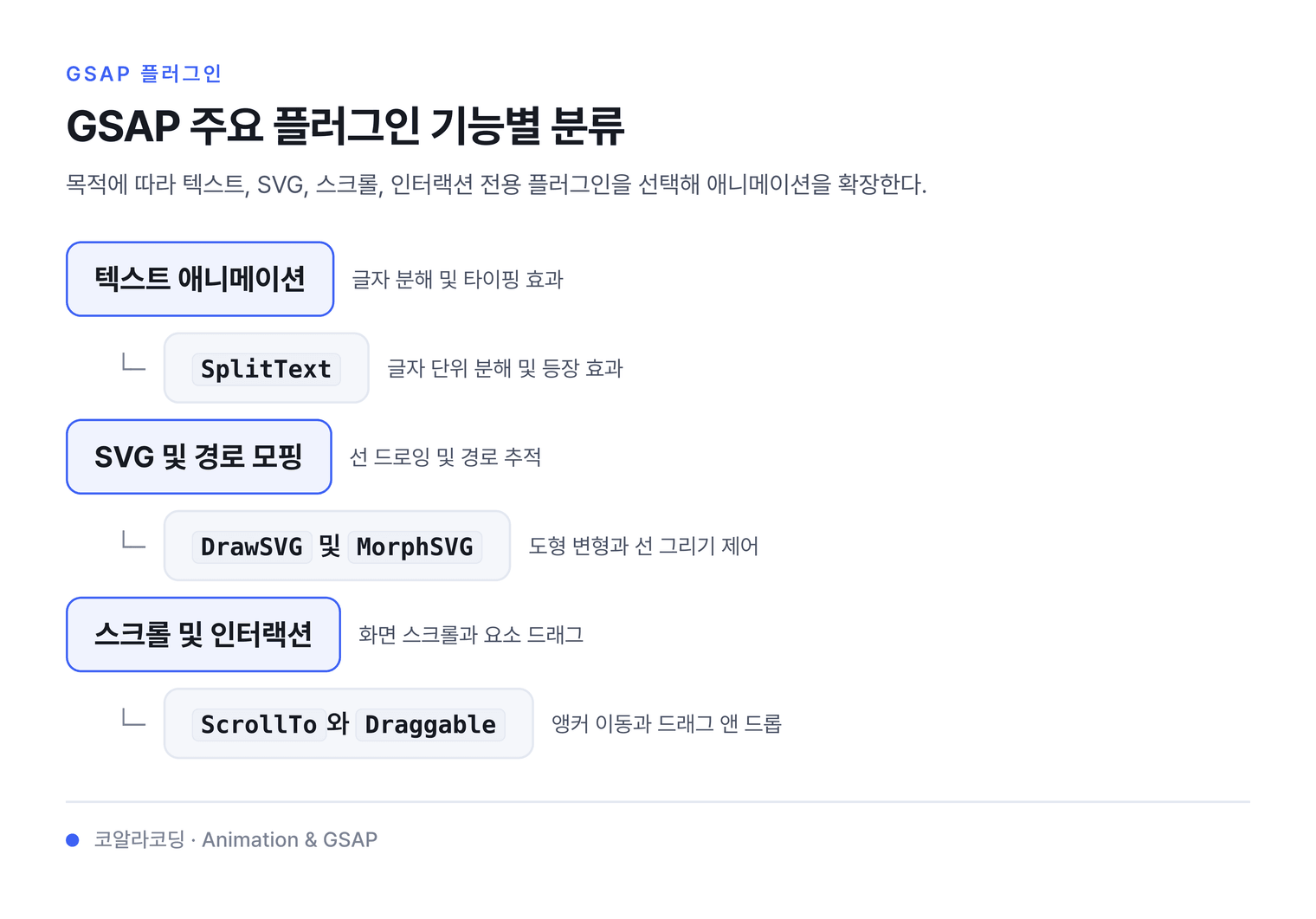
8. 텍스트 애니메이션
결과가 눈에 즉시 보이는 단계다.
8.1. SplitText — 글자 분해 등장
GSAP SplitText.create()를 사용해서 h1 제목 텍스트를 글자 단위로 분해하고, 각 글자가 아래에서 위로 순차적으로 페이드인하는 애니메이션을 만들어줘. stagger 0.03초, ease는 power3.out으로 설정하고, 애니메이션 완료 후 revert()로 DOM을 복구해줘.
React + @gsap/react의 useGSAP 훅을 사용해서 SplitText.create()로 h1 제목 텍스트를 글자 단위로 분해하고, 각 글자가 아래에서 위로 순차적으로 페이드인하는 컴포넌트를 만들어줘. stagger 0.03초, ease는 power3.out으로 설정하고, gsap.context()로 클린업을 처리해줘.
텍스트를 chars / words / lines 단위 span으로 분해해 개별 요소에 애니메이션을 건다.
revert()로 원본 DOM을 복구하는 습관이 필수다.
핵심 API
| API | 설명 |
|---|---|
SplitText.create(target, vars) |
인스턴스 생성 (3.13+ 권장). type:'chars,words,lines' 조합 가능 |
.chars / .words / .lines |
분해된 요소 배열 반환 |
.revert() |
DOM을 원래 텍스트 상태로 복구 |
autoSplit: true |
리사이즈·폰트 로드 시 자동 재분할 (3.13+) |
mask: 'lines' |
줄 단위 클리핑 래퍼 생성 — 마스크 효과용 (3.13+) |
// 1. SplitText.create()로 인스턴스 생성 (3.13+ 권장)
const split = SplitText.create(".title", {
  type: "chars,words"
});

// 2. 분해된 글자에 stagger 적용
gsap.from(split.chars, {
  opacity: 0,
  y: 40,
  duration: 0.6,
  stagger: 0.03,
  ease: "power3.out",
  onComplete: () => split.revert() // 3. 완료 후 DOM 복구
});
autoSplit + onSplit 패턴 (3.13+)
리사이즈나 폰트 로드 시 자동으로 재분할하려면 autoSplit과 onSplit()을 조합한다.
onSplit()에서 애니메이션을 return하면 재분할 시 자동으로 정리·동기화된다.
SplitText.create(".title", {
  type: "lines,words",
  mask: "lines",       // 줄 단위 클리핑 래퍼
  autoSplit: true,     // 리사이즈 시 자동 재분할
  onSplit(self) {
    // return한 애니메이션은 재분할 시 자동 정리됨
    return gsap.from(self.words, {
      y: 100,
      opacity: 0,
      stagger: 0.05,
      duration: 0.5
    });
  }
});
8.2. ScrambleText — 타이핑 해독 효과
GSAP ScrambleTextPlugin을 사용해서 “.code-display” 요소에 해킹 터미널 느낌의 텍스트 해독 애니메이션을 만들어줘. 0과 1로 이루어진 이진수 문자가 섞이다가 2초 후 “ACCESS GRANTED”로 확정되는 효과야. speed 0.4, revealDelay 0.5로 설정해줘.
React + @gsap/react의 useGSAP 훅을 사용해서 ScrambleTextPlugin으로 해킹 터미널 느낌의 텍스트 해독 컴포넌트를 만들어줘. 0과 1로 이루어진 이진수 문자가 섞이다가 2초 후 “ACCESS GRANTED”로 확정되는 효과야. useRef로 대상 요소를 참조해줘.
트위닝 도중 문자가 랜덤 글자로 섞이다가 목표 텍스트로 수렴한다.
chars 옵션으로 사용할 문자 셋을 지정한다.
핵심 API
| API | 설명 |
|---|---|
scrambleText: {text} |
목표 텍스트 지정 (필수) |
chars: 'upperCase' |
랜덤 문자셋. 'lowerCase' / '0123456789' / 커스텀 문자열 |
speed: 0.3 |
스크램블 속도 (0~1) |
revealDelay: 0.5 |
각 글자 확정 전 지연 시간 |
gsap.to(".code-display", {
  duration: 2,
  scrambleText: {
    text: "ACCESS GRANTED",
    chars: "01",        // 0과 1로만 섞임
    speed: 0.4,
    revealDelay: 0.5
  }
});
8.3. Text — innerHTML 순차 타이핑
GSAP TextPlugin을 사용해서 “.terminal” 요소에 “Hello, world! 타이핑 완료.” 텍스트가 한 글자씩 타이핑되는 애니메이션을 만들어줘. 3초 동안 글자 단위로 타이핑하고, 새로 추가되는 글자에는 “new-char” 클래스를 붙여줘. ease는 none으로.
React + @gsap/react의 useGSAP 훅을 사용해서 TextPlugin으로 터미널 타이핑 효과 컴포넌트를 만들어줘. “Hello, world! 타이핑 완료.” 텍스트가 한 글자씩 3초 동안 타이핑되고, useRef로 대상 요소를 참조해줘.
innerHTML을 타이핑하듯 순서대로 채운다.
delimiter로 글자 단위 vs 단어 단위를 선택한다.
핵심 API
| API | 설명 |
|---|---|
text: {value} |
표시할 텍스트 (필수) |
delimiter: '' |
'' = 글자 단위, ' ' = 단어 단위 |
speed: 1 |
타이핑 속도 배율 |
newClass: 'typed' |
새로 추가된 글자에 붙일 CSS 클래스 |
gsap.to(".terminal", {
  duration: 3,
  text: {
    value: "Hello, world! 타이핑 완료.",
    delimiter: "",        // 글자 단위 타이핑
    newClass: "new-char"
  },
  ease: "none"
});
9. SVG 드로잉 & 모핑
path 개념을 순서대로 쌓아가는 단계다. DrawSVG → MorphSVG → MotionPath 순서로 진행하면 자연스럽게 연결된다.
9.1. DrawSVG — 선 그리기 애니메이션
GSAP DrawSVGPlugin을 사용해서 SVG path 요소가 처음에는 보이지 않다가 2초 동안 0%에서 100%까지 선이 그려지는 애니메이션을 만들어줘. ease는 power2.inOut으로 설정해줘.
React + @gsap/react의 useGSAP 훅을 사용해서 DrawSVGPlugin으로 SVG path가 0%에서 100%까지 2초 동안 선이 그려지는 컴포넌트를 만들어줘. useRef로 SVG path를 참조하고, gsap.context()로 클린업해줘.
stroke-dashoffset 원리를 추상화해 path · circle · line을 비율(%) 또는 픽셀로 그린다.
핵심 API
| API | 설명 |
|---|---|
drawSVG: '0%' |
시작값 (숨김). '0% 0%' 형태도 가능 |
drawSVG: '100%' |
전체 표시 |
drawSVG: '20% 80%' |
구간 지정 — 20%~80% 부분만 표시 |
DrawSVG.getLength(el) |
path 총 길이 반환 유틸 |
// 숨김 상태에서 시작
gsap.set(".path", { drawSVG: "0%" });

// 전체 그리기
gsap.to(".path", {
  drawSVG: "100%",
  duration: 2,
  ease: "power2.inOut"
});

// 구간 이동 애니메이션 (20%~80% → 80%~100%)
gsap.to(".path", {
  drawSVG: "80% 100%",
  duration: 1.5
});
9.2. MorphSVG — 도형 변형 트랜지션
GSAP MorphSVGPlugin을 사용해서 원(circle) → 별(star) → 하트(heart) 순서로 SVG 도형이 무한 순환하며 변형되는 애니메이션을 만들어줘. rotational 보간 방식을 사용하고, 각 변형은 1초, ease는 power2.inOut으로 설정해줘.
React + @gsap/react의 useGSAP 훅을 사용해서 MorphSVGPlugin으로 원 → 별 → 하트 순서로 SVG 도형이 무한 순환 변형되는 컴포넌트를 만들어줘. rotational 보간, 각 변형 1초, useRef로 shape 요소를 참조해줘.
SVG path 간 형태를 보간한다. 포인트 수가 달라도 자동 보정한다.
핵심 API
| API | 설명 |
|---|---|
morphSVG: '#target-path' |
목표 path의 id 또는 d 값 직접 입력 |
type: 'rotational' |
회전 보간 방식 — 더 자연스러운 변형 |
shapeIndex: 0 |
보간 시작점 인덱스. 'auto' 추천 |
MorphSVG.convertToPath(el) |
circle · rect 등을 path로 자동 변환 |
// circle → star → heart 순환
const shapes = ["#circle", "#star", "#heart"];
let idx = 0;

function morph() {
  idx = (idx + 1) % shapes.length;
  gsap.to("#shape", {
    morphSVG: {
      shape: shapes[idx],
      type: "rotational"  // 자연스러운 회전 보간
    },
    duration: 1,
    ease: "power2.inOut",
    onComplete: morph
  });
}

morph();
9.3. MotionPath — SVG 경로 따라 이동
GSAP MotionPathPlugin을 사용해서 “.rocket” 요소가 “#orbit-path” SVG 경로를 따라 무한 반복으로 이동하는 애니메이션을 만들어줘. autoRotate를 켜서 진행 방향으로 자동 회전하고, 요소 중심 기준으로 정렬해줘. 4초 동안 등속(ease: none)으로 움직여야 해.
React + @gsap/react의 useGSAP 훅을 사용해서 MotionPathPlugin으로 로켓 이모지가 SVG 타원 궤도를 따라 무한 반복 이동하는 컴포넌트를 만들어줘. autoRotate, alignOrigin: [0.5, 0.5], 4초 등속으로 설정하고, useRef로 요소를 참조해줘.
요소를 SVG path 위에서 이동시킨다. autoRotate로 진행 방향에 맞게 자동 회전한다.
핵심 API
| API | 설명 |
|---|---|
motionPath: {path} |
경로 selector 또는 d 값 |
autoRotate: true |
이동 방향으로 자동 회전 |
align: '#path' |
path 좌표계에 맞게 위치 자동 정렬 |
start / end |
경로의 시작·끝 비율 (0~1) |
gsap.to(".rocket", {
  motionPath: {
    path: "#orbit-path",
    align: "#orbit-path",
    autoRotate: true,
    alignOrigin: [0.5, 0.5],  // 요소 중심 기준 정렬
    start: 0,
    end: 1
  },
  duration: 4,
  repeat: -1,
  ease: "none"
});
9.4. MotionPathHelper — 경로 시각 편집
GSAP MotionPathHelper를 사용해서 “.rocket” 요소에 “#orbit-path” 경로를 연결한 시각 편집 도구를 브라우저에 띄워줘. 생성 즉시 편집 모드(selected: true)로 열리게 해줘. 이건 개발 전용이니까 배포 전에 반드시 제거해야 해.
React + @gsap/react의 useGSAP 훅을 사용해서 MotionPathHelper로 경로 시각 편집 도구를 브라우저에 띄우는 개발 전용 컴포넌트를 만들어줘. selected: true로 즉시 편집 모드를 열고, 프로덕션 빌드에서는 조건부로 제외해줘.
브라우저에서 path를 드래그로 편집하고 좌표를 복사하는 개발 전용 도구다.
배포 전 반드시 제거한다.
핵심 API
| API | 설명 |
|---|---|
MotionPathHelper.create(el) |
대상 요소에 편집 핸들 생성 |
selected: true |
생성 즉시 편집 모드 활성화 |
path: '#existing-path' |
기존 path를 기반으로 편집 시작 |
[Copy SVG] 버튼 |
편집 완료 후 d 값을 클립보드에 복사 |
// 개발 시에만 사용 — 배포 전 제거
import { MotionPathHelper } from "gsap/MotionPathHelper";
gsap.registerPlugin(MotionPathHelper);

MotionPathHelper.create(".rocket", {
  path: "#orbit-path",
  selected: true
});
// 편집 후 [Copy SVG] 클릭 → d 값 복사해 코드에 붙여넣기
MotionPathHelper는 개발 환경에서만 사용한다. 프로덕션 번들에 포함되면 불필요한 용량이 늘어난다.
10. 스크롤 & 드래그 인터랙션
실제 서비스에서 가장 자주 쓰이는 패턴이다. ScrollTo → Observer → Draggable → Inertia 순서로 진행한다.
10.1. ScrollTo — 부드러운 앵커 이동
GSAP ScrollToPlugin을 사용해서 페이지 내 모든 앵커 링크(a[href^=’#’])를 클릭하면 해당 섹션으로 부드럽게 스크롤되는 기능을 만들어줘. 고정 헤더 80px 오프셋을 보정하고, 사용자가 직접 스크롤하면 트윈을 즉시 중단(autoKill)해줘.
React + @gsap/react의 useGSAP 훅을 사용해서 ScrollToPlugin으로 내비게이션 앵커 링크 클릭 시 해당 섹션으로 부드럽게 스크롤되는 컴포넌트를 만들어줘. offsetY 60px 헤더 보정, autoKill 적용하고, useRef로 섹션들을 참조해줘.
window 또는 스크롤 컨테이너를 특정 y 위치나 요소로 부드럽게 이동시킨다.
핵심 API
| API | 설명 |
|---|---|
scrollTo: '#section' |
요소 selector로 이동 |
scrollTo: {y: 400} |
px 값으로 이동 |
offsetY: 80 |
헤더 높이만큼 오프셋 보정 |
autoKill: true |
사용자 스크롤 시 트윈 즉시 중단 |
// 앵커 버튼 전체에 부드러운 스크롤 적용
document.querySelectorAll("a[href^='#']").forEach(a => {
  a.addEventListener("click", e => {
    e.preventDefault();
    gsap.to(window, {
      duration: 1,
      scrollTo: {
        y: a.getAttribute("href"),
        offsetY: 80    // 고정 헤더 높이만큼 보정
      },
      ease: "power2.inOut",
      autoKill: true   // 사용자 스크롤 시 중단
    });
  });
});
10.2. Observer — 스크롤 방향 감지 UI
GSAP Observer를 사용해서 풀페이지 섹션 전환 UI를 만들어줘. 휠과 터치 이벤트를 감지하고, 아래로 스크롤하면 다음 섹션이 올라오고 위로 스크롤하면 이전 섹션이 내려가는 방식이야. tolerance 10px로 설정하고, 전환 시간은 0.9초, ease는 power2.inOut으로 해줘.
React + @gsap/react의 useGSAP 훅을 사용해서 Observer로 풀페이지 섹션 전환 컴포넌트를 만들어줘. 휠과 터치로 섹션을 위아래로 전환하고, tolerance 10px, 전환 0.9초, useState로 현재 섹션 인덱스를 관리해줘.
스크롤 · 휠 · 터치 · 포인터 방향을 통합 감지한다.
풀페이지 전환, 수평 스크롤 섹션에 활용한다.
핵심 API
| API | 설명 |
|---|---|
type: 'wheel,touch,pointer' |
감지할 이벤트 종류 |
onDown / onUp |
스크롤 방향별 콜백 |
tolerance: 10 |
px 단위 최소 이동 임계값 |
.kill() |
옵저버 해제 |
let current = 0;
const sections = gsap.utils.toArray(".section");

Observer.create({
  type: "wheel,touch",
  tolerance: 10,
  onDown: () => {
    if (current < sections.length - 1) {
      gsap.to(sections[++current], {
        yPercent: 0,
        duration: 0.9,
        ease: "power2.inOut"
      });
    }
  },
  onUp: () => {
    if (current > 0) {
      gsap.to(sections[current--], {
        yPercent: 100,
        duration: 0.9,
        ease: "power2.inOut"
      });
    }
  }
});
10.3. Draggable — 드래그 앤 드롭 카드
GSAP Draggable을 사용해서 “.card” 요소를 “.board” 영역 안에서만 드래그할 수 있는 칸반 보드를 만들어줘. 120px 단위 격자에 흡착(snap)되고, edgeResistance 0.65로 설정해줘. 드래그가 끝나면 콘솔에 x, y 좌표를 출력해줘.
React + @gsap/react의 useGSAP 훅을 사용해서 Draggable로 카드를 드래그할 수 있는 칸반 보드 컴포넌트를 만들어줘. bounds는 부모 컨테이너, 120px 격자 snap, edgeResistance 0.65로 설정하고, useRef로 카드를 참조해줘.
요소를 드래그 가능하게 만든다.
bounds로 영역 제한, snap으로 격자 흡착을 구현한다.
핵심 API
| API | 설명 |
|---|---|
type: 'x,y' |
드래그 축. 'x' / 'y' / 'rotation' 가능 |
bounds: '.container' |
드래그 가능 영역 제한 |
snap: {x: 100} |
100px 단위 격자 흡착 |
onDragEnd |
드래그 종료 콜백 |
Draggable.create(".card", {
  type: "x,y",
  bounds: ".board",
  edgeResistance: 0.65,
  snap: {
    x: v => Math.round(v / 120) * 120,  // 120px 격자 흡착
    y: v => Math.round(v / 120) * 120
  },
  onDragEnd() {
    console.log("x:", this.x, "y:", this.y);
  }
});
10.4. Inertia — 드래그 관성 슬라이더
GSAP Draggable + InertiaPlugin을 조합해서 “.carousel-item” 요소를 x축으로만 드래그할 수 있는 캐러셀을 만들어줘. 손을 떼면 관성으로 미끄러지다가 300px 단위로 흡착되게 해줘. 이동 범위는 minX: -800, maxX: 0으로 제한해줘.
React + @gsap/react의 useGSAP 훅을 사용해서 Draggable + InertiaPlugin으로 x축 드래그 캐러셀 컴포넌트를 만들어줘. 관성으로 미끄러지다가 300px 단위 snap, bounds는 minX: -800, maxX: 0으로 제한하고, useRef로 트랙을 참조해줘.
Draggable과 조합해 손을 뗐을 때 관성으로 감속하는 효과를 준다.
단독으로 gsap.to에서도 사용 가능하다.
핵심 API
| API | 설명 |
|---|---|
inertia: true |
Draggable에서 관성 활성화 (InertiaPlugin 필요) |
resistance: 200 |
감속 강도. 클수록 빨리 멈춤 |
max / min |
관성 종료 후 클램핑 범위 |
gsap.to(el, {inertia}) |
직접 트윈에서 관성 사용 |
// Draggable + Inertia 조합 캐러셀
Draggable.create(".carousel-item", {
  type: "x",
  inertia: true,
  bounds: { minX: -800, maxX: 0 },
  snap: x => Math.round(x / 300) * 300  // 300px 단위 슬라이드 흡착
});

// 단독 사용 예시
gsap.to(".ball", {
  inertia: {
    x: { velocity: 1200, resistance: 300, min: 0, max: 600 }
  }
});
11. 물리 · 레이아웃 · 고급
JS/DOM 이해도가 충분히 쌓인 뒤 도전하는 단계다.
코드 양이 적은데 결과가 극적이다.
11.1. Physics2D — 중력 파티클 효과
GSAP Physics2DPlugin을 사용해서 화면을 클릭하면 클릭 지점에서 30개의 파티클이 터지는 컨페티 이펙트를 만들어줘. 각 파티클은 랜덤 속도(400900)와 랜덤 각도(-130-50)로 발사되고, gravity 1200으로 떨어지며 페이드아웃 후 DOM에서 제거해줘.
React + @gsap/react의 useGSAP 훅을 사용해서 Physics2DPlugin으로 클릭 지점에서 30개 파티클이 터지는 컨페티 컴포넌트를 만들어줘. 랜덤 속도(400900), 랜덤 각도(-130-50), gravity 1200으로 설정하고, onClick 핸들러로 구현해줘.
gravity · velocity · angle · friction으로 2D 물리 운동을 정의한다.
컨페티 이펙트 구현에 활용한다.
핵심 API
| API | 설명 |
|---|---|
velocity: 800 |
초기 속도 (px/s) |
angle: -70 |
발사 각도 (도 단위, 위쪽이 음수) |
gravity: 1000 |
중력 가속도 (px/s²) |
friction: 0.1 |
마찰 계수 (0=없음, 1=즉시 정지) |
function burst(x, y) {
  for (let i = 0; i < 30; i++) {
    const dot = document.createElement("div");
    dot.className = "dot";
    document.body.appendChild(dot);
    gsap.set(dot, { x, y });

    gsap.to(dot, {
      duration: 1.5,
      physics2D: {
        velocity: gsap.utils.random(400, 900),
        angle: gsap.utils.random(-130, -50),
        gravity: 1200,
        friction: 0.05
      },
      opacity: 0,
      onComplete: () => dot.remove()
    });
  }
}

document.addEventListener("click", e => burst(e.clientX, e.clientY));
11.2. PhysicsProps — 속도 기반 속성 애니메이션
GSAP PhysicsPropsPlugin을 사용해서 카드를 pointerup 했을 때 x축으로 속도 600, 회전 속도 180으로 날아가면서 페이드아웃되는 스와이프 효과를 만들어줘. friction은 x: 0.15, rotation: 0.1로 설정해줘.
React + @gsap/react의 useGSAP 훅을 사용해서 PhysicsPropsPlugin으로 카드 클릭 시 x축 속도 600, 회전 속도 180으로 날아가며 페이드아웃되는 스와이프 컴포넌트를 만들어줘. useRef로 카드를 참조하고, 리셋 버튼도 추가해줘.
velocity · friction으로 CSS 속성을 물리 법칙처럼 감속시킨다.
튕기는 카드, 스핀 효과에 활용한다.
핵심 API
| API | 설명 |
|---|---|
physicsProps: {x: {velocity}} |
속성별 물리값 지정 |
velocity |
초기 속도 |
friction |
마찰 계수 (0~1) |
acceleration |
가속도 (음수=감속) |
// 스와이프 후 카드가 날아가는 효과
card.addEventListener("pointerup", () => {
  gsap.to(card, {
    duration: 1.5,
    physicsProps: {
      x: { velocity: 600, friction: 0.15 },
      rotation: { velocity: 180, friction: 0.1 }
    },
    opacity: 0
  });
});
11.3. Flip — 레이아웃 전환 애니메이션
GSAP Flip 플러그인을 사용해서 “.item” 요소들이 그리드 뷰 ↔ 리스트 뷰로 전환될 때 자연스럽게 위치가 이동하는 레이아웃 애니메이션을 만들어줘. Flip.getState()로 변경 전 상태를 저장하고, 클래스 토글 후 Flip.from()으로 0.6초 동안 전환해줘. absolute: true, stagger 0.04로 설정해줘.
React + @gsap/react의 useGSAP 훅을 사용해서 Flip으로 그리드 ↔ 리스트 레이아웃 전환 컴포넌트를 만들어줘. useState로 뷰 모드를 관리하고, Flip.getState() → 클래스 변경 → Flip.from()으로 0.6초 전환, absolute: true, stagger 0.04로 설정해줘.
DOM 변경 전후의 위치 · 크기 차이를 계산해 자연스러운 레이아웃 전환을 만든다.
FLIP(First, Last, Invert, Play) 패턴을 자동화한 플러그인이다.
핵심 API
| API | 설명 |
|---|---|
Flip.getState(targets) |
변경 전 상태 스냅샷 저장 |
Flip.from(state, vars) |
스냅샷 기준으로 애니메이션 역재생 |
absolute: true |
애니메이션 중 position:absolute로 전환 |
onEnter / onLeave |
추가 · 제거되는 요소 콜백 |
const items = document.querySelectorAll(".item");

// 1. 변경 전 상태 저장
const state = Flip.getState(items);

// 2. DOM / 클래스 변경 (그리드 ↔ 리스트 전환)
container.classList.toggle("grid-view");

// 3. 변경 전 위치에서 현재 위치로 애니메이션
Flip.from(state, {
  duration: 0.6,
  ease: "power2.inOut",
  stagger: 0.04,
  absolute: true
});
11.4. CSSRule — 전역 스타일 트위닝 (deprecated)
CSSRulePlugin은 공식적으로 지원 중단(deprecated) 상태다. CSS 변수 애니메이션으로 대체하는 것을 권장한다. 아래 대체 예시를 참고한다.
GSAP로 CSS 변수를 직접 트위닝해서 테마 전환 애니메이션을 만들어줘. html 요소의 –accent 변수를 “#534AB7″로 0.8초 동안 변경해줘. CSSRulePlugin은 deprecated이니까 사용하지 말고 CSS 변수 직접 트위닝 방식으로 만들어줘.
React + @gsap/react의 useGSAP 훅을 사용해서 CSS 변수를 직접 트위닝하는 테마 전환 컴포넌트를 만들어줘. 버튼 클릭 시 html 요소의 –accent 변수를 선택한 색상으로 0.8초 동안 변경해줘. CSSRulePlugin은 deprecated이니까 사용하지 마.
개별 요소가 아닌 CSS 규칙 자체를 트위닝한다.
:hover 스타일이나 CSS 변수 값을 코드로 애니메이션할 때 사용했다.
핵심 API
| API | 설명 |
|---|---|
CSSRulePlugin.getRule('.cls') |
대상 CSS 규칙 객체 반환 |
cssRule: {color} |
트위닝할 속성 지정 |
var(--color) |
CSS 변수도 트위닝 가능 |
| 전역 효과 | 한 규칙 수정 → 해당 클래스 전체에 즉시 반영 |
// ❌ deprecated — CSSRulePlugin 방식
const rule = CSSRulePlugin.getRule(".btn:hover");
gsap.to(rule, {
  duration: 1,
  cssRule: { backgroundColor: "#7F77DD" }
});

// ✅ 권장 — CSS 변수 직접 트위닝
gsap.to("html", {
  "--accent": "#534AB7",
  duration: 0.8
});
11.5. Pixi + Easel — 캔버스 렌더러 연동
GSAP PixiPlugin을 사용해서 Pixi.js Sprite에 alpha, tint, blur, x 속성을 한 번에 트위닝하는 애니메이션을 만들어줘. PixiPlugin.registerPIXI(PIXI)로 등록 후, alpha 0.3, tint 0x534AB7, blur 8, x 400으로 1.5초 동안 변경해줘.
React + @gsap/react의 useGSAP 훅을 사용해서 PixiPlugin으로 Pixi.js Sprite의 alpha, tint, blur, x를 트위닝하는 컴포넌트를 만들어줘. useEffect에서 PIXI.Application을 생성하고, PixiPlugin.registerPIXI(PIXI) 등록 후 useGSAP으로 애니메이션해줘.
PixiPlugin은 Pixi.js DisplayObject 속성을, EaselPlugin은 EaselJS 속성을 GSAP 트윈으로 제어한다.
핵심 API
| API | 설명 |
|---|---|
PixiPlugin.registerPIXI(PIXI) |
PIXI 객체를 플러그인에 등록 (필수) |
pixi: {alpha, tint} |
Pixi 전용 속성 트위닝 |
pixi: {blur, brightness} |
필터 효과도 직접 트위닝 |
easel: {alpha, brightness} |
EaselJS DisplayObject 속성 |
import * as PIXI from "pixi.js";
PixiPlugin.registerPIXI(PIXI);   // 반드시 먼저 등록

const sprite = new PIXI.Sprite(texture);
app.stage.addChild(sprite);

gsap.to(sprite, {
  duration: 1.5,
  pixi: {
    alpha: 0.3,
    tint: 0x534AB7,
    blur: 8,
    x: 400
  },
  ease: "power2.out"
});
11.6. GSDevTools — 타임라인 디버거
GSAP GSDevTools를 사용해서 “intro” 타임라인에 디버그 컨트롤러를 연결해줘. 키보드 단축키(스페이스바, 화살표)를 활성화하고, 미니멀 모드는 끈 상태로 설정해줘. 이건 개발 전용이니까 배포 전에 반드시 제거해야 해.
React + @gsap/react의 useGSAP 훅을 사용해서 GSDevTools로 타임라인 디버그 컨트롤러를 연결하는 개발 전용 컴포넌트를 만들어줘. process.env.NODE_ENV === ‘development’ 조건으로 GSDevTools.create()를 호출하고, keyboard: true로 설정해줘.
타임라인에 재생 · 일시정지 · 속도 조절 UI를 붙인다.
복잡한 애니메이션 디버깅 시 필수 도구다.
핵심 API
| API | 설명 |
|---|---|
GSDevTools.create() |
전역 컨트롤러 생성 |
animation: tl |
특정 타임라인에 연결 |
minimal: true |
미니멀 UI 모드 |
keyboard: true |
스페이스바 · 화살표 단축키 활성화 |
const tl = gsap.timeline({ id: "intro" });

tl.from(".hero", { opacity: 0, y: 60, duration: 1 })
  .from(".subtitle", { opacity: 0, duration: 0.8 }, "-=0.3")
  .from(".cta", { opacity: 0, scale: 0.8 }, "-=0.2");

// 개발 시에만 추가 — 배포 전 제거
GSDevTools.create({
  animation: "intro",   // timeline id로 연결
  keyboard: true,
  minimal: false
});
GSDevTools와 MotionPathHelper는 개발 전용이다. 프로덕션 빌드에서는 반드시 제거한다.
11.7. 업그레이드 방법
GSAP 3.13 이전에는 일부 플러그인이 Club GreenSock 유료 회원 전용이었다.
3.13 이상으로 업그레이드하면 모든 플러그인을 공개 npm에서 바로 설치할 수 있다.
npm install gsap@latest
기존에 비공개 레포지토리 토큰을 사용했다면, 공개 npm으로 전환한다.
11.8. 순서 팁
- 텍스트 애니메이션 후 보너스: Physics2D 컨페티 이펙트
- SVG 드로잉 후 보너스: MorphSVG 도형 순환
- 스크롤 & 드래그 후 심화: Inertia + Draggable 캐러셀
- 물리 · 고급 마무리: Flip 그리드 ↔ 리스트 전환
11.9. 플러그인 등록
모든 GSAP 플러그인은 사용 전 gsap.registerPlugin()으로 등록해야 한다.
3.13 이상에서는 모든 플러그인을 공개 gsap 패키지에서 직접 import할 수 있다.
import gsap from "gsap";
import { SplitText } from "gsap/SplitText";
import { DrawSVGPlugin } from "gsap/DrawSVGPlugin";
import { Flip } from "gsap/Flip";

gsap.registerPlugin(SplitText, DrawSVGPlugin, Flip);
CDN 사용 시에는 스크립트 로드 후 동일하게 gsap.registerPlugin()을 호출한다.